
A catalog contribution rejection Amazon sellers see most often happens when they submit a change to a product detail page through Seller Central, a flat file, or API, and Amazon's system does not accept the update. The listing stays unchanged, sometimes with an error message and sometimes with no explanation at all. For sellers managing active catalogs, this is one of the most frustrating operational problems because the listing may show incorrect or outdated information that directly affects conversions, compliance, and customer experience.
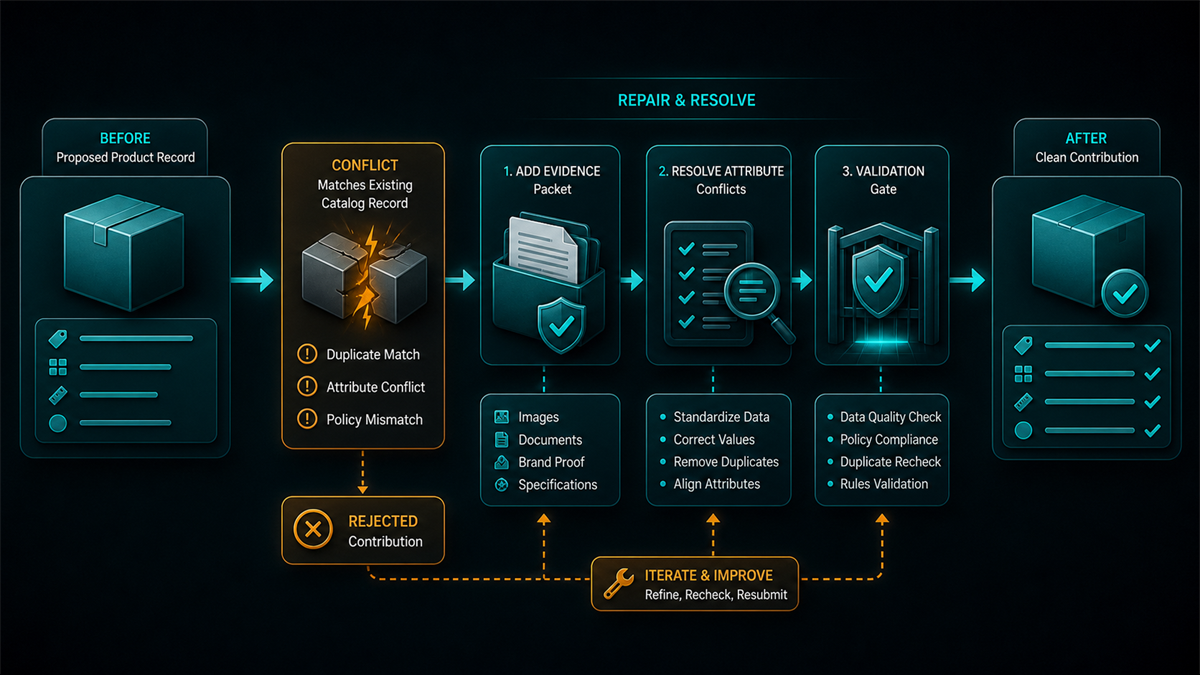
This guide explains how Amazon's catalog contribution system works, the most common reasons updates get rejected, and the specific fixes for each type of rejection.
Key Takeaways
- Amazon's catalog system accepts contributions from multiple sources: the brand owner, other sellers, Amazon Retail, and automated systems. Your update competes with these other contributions for which version displays on the detail page.
- Brand Registry gives brand owners stronger contribution authority, but it does not guarantee that every update will be accepted. Other factors, including data quality scores, automated validation rules, and competing contributions, can still override your submission.
- The most common rejection causes are data validation failures, contribution authority conflicts, flat file formatting errors, and restricted attribute locks.
- Many "rejections" are silent: your submission processes without an error, but the detail page does not change. These are typically contribution authority issues, not formatting problems.
- The fix path depends on the rejection type. Some require correcting your data format. Others require a Brand Registry case or a catalog team escalation.
How Amazon's Catalog Contribution System Works
Amazon does not give any single seller exclusive control over a product detail page. Instead, the catalog system accepts contributions from every entity associated with the product: the brand owner through Brand Registry, third-party sellers listing against the ASIN, Amazon's retail team for vendor products, and Amazon's automated systems that pull data from manufacturer databases and other sources.
When multiple contributors submit different values for the same attribute, such as the product title, Amazon's system uses an authority hierarchy to decide which version displays. Brand Registry owners generally rank highest, but the hierarchy also considers data quality signals, contribution history, and whether the attribute is locked by Amazon's catalog team.
This means your update can be technically valid, correctly formatted, and still not appear on the detail page because another contributor's version outranks yours.
Common Rejection Types and Fixes
1. Data validation errors
These are the most straightforward rejections. Amazon's system checks your submission against format rules, character limits, and category-specific requirements. If the data fails validation, the update is rejected with an error message.
Common triggers:
Title exceeds the character limit for the product category. Different categories enforce different maximum lengths, and the limit is not always the same as the general 200-character guideline. Bullet points contain restricted claims, prohibited characters, or HTML formatting that Amazon's system strips. Backend search terms exceed the byte limit. Image files do not meet minimum resolution, file format, or background requirements. Required attributes for the category are missing from the submission.
Fix: Read the error message carefully. Most validation errors tell you exactly which field failed and why. Correct the specific field and resubmit. For flat file submissions, check the valid values tab in the category-specific template for accepted formats and value ranges.
2. Contribution authority conflicts (silent rejections)
This is the most common and least visible rejection type. Your submission processes without an error, but the detail page does not change. The system accepted your data but ranked another contributor's version higher.
Common triggers:
Amazon Retail has a competing contribution on the same attribute, typically for products that are or were part of the vendor (1P) channel. Another seller submitted a conflicting update that outranks yours in the authority hierarchy. Amazon's automated catalog systems pulled data from a manufacturer database or product feed that overrides your manual submission.
Fix: If you are the brand owner enrolled in Brand Registry, submit the update through the Brand Registry portal rather than standard Seller Central. Brand Registry contributions carry higher authority. If the update still does not apply, open a case through Brand Registry support referencing the specific ASIN and attribute, and include documentation such as your brand's official product specifications or packaging.
If you are not the brand owner, your options are limited. You can submit the update and hope your contribution is accepted, but you cannot override the brand owner's or Amazon Retail's contribution authority.
3. Flat file formatting errors
Flat file rejections happen when the file structure, column headers, or data formats do not match Amazon's expected template for the product category.
Common triggers:
Using the wrong flat file template for the product category. Missing required columns or column header mismatches. Encoding issues: special characters, smart quotes, or non-UTF-8 characters that break the file parsing. Product identifiers (UPC, EAN, ASIN) that do not match existing catalog records. Submitting updates for products in categories that require category-specific templates rather than the generic inventory loader.
Fix: Download a fresh copy of the category-specific flat file template from Seller Central. Do not reuse old templates, as Amazon updates column headers and required fields periodically. Copy your data into the fresh template, validate the encoding (save as UTF-8 CSV or use the .xlsx format if supported), and resubmit. Check the processing report for line-by-line error details.
4. Restricted attribute locks
Some product attributes are locked by Amazon's catalog team and cannot be changed through normal contribution paths. This typically applies to product type, item type keyword, brand name, and certain category classification fields.
Common triggers:
Attempting to change the brand name on an existing ASIN. Attempting to change the product type or category classification. Attempting to modify attributes that Amazon has locked after a catalog audit or enforcement action.
Fix: Locked attributes require a case submission to Amazon's catalog team. Open a case through Seller Central Help and specify the ASIN, the attribute you need changed, the current value, the correct value, and documentation supporting the change (such as packaging photos, manufacturer specs, or trademark certificates). If you have Brand Registry, submit through the Brand Registry support path for faster processing.
5. Image contribution rejections
Image updates have their own set of validation rules beyond general catalog contributions.
Common triggers:
Main image does not meet Amazon's requirements: pure white background, no text overlays, no watermarks, product fills a minimum percentage of the frame. Image file is below the minimum resolution (typically 1000 pixels on the longest side for zoom functionality). File format is not supported (Amazon accepts JPEG, PNG, GIF, and TIFF). Image contains content that violates Amazon's image policy, such as promotional text, badges, or competitor comparisons on the main image.
Fix: Review Amazon's current image requirements for your product category. Some categories have additional rules beyond the general guidelines. Reformat the image to meet specifications and resubmit. If a compliant image is still not displaying, this may be a contribution authority issue: another contributor's image is outranking yours. Use Brand Registry to assert image authority.
The Escalation Path for Persistent Rejections
When standard resubmission does not work, escalate in this order.
- Resubmit through Brand Registry. If you are enrolled, this is always the first escalation step. Brand Registry contributions carry higher authority than standard Seller Central submissions.
- Open a case through Brand Registry support. Specify the ASIN, the exact attribute, the current incorrect value, the correct value, and attach supporting documentation. Be precise and factual. Generic requests like "please fix my listing" get routed to automated responses.
- Request a catalog team review. If the Brand Registry case is closed without resolution, open a new case explicitly requesting a manual catalog team review. Include the previous case ID and all documentation.
- Contact your Amazon account manager. If you have a dedicated account manager through programs like Strategic Account Services, they can escalate catalog issues directly to the catalog team.
- Brand Registry escalation portal. For persistent issues, Brand Registry offers an escalation path through the Report a Violation tool, particularly when incorrect contributions from other sellers are the cause.
Each step requires the same documentation: ASIN, attribute, current value, correct value, and proof. Do not escalate without documentation, and do not change your evidence between steps.
Preventing Contribution Problems
Most catalog contribution issues are preventable with consistent process.
- Always use the current category-specific flat file template. Download a fresh copy before each bulk update rather than reusing saved files.
- Validate flat files before uploading. Check encoding, required fields, and product identifier matches.
- Enroll in Brand Registry if you own the brand. This is the single most effective step for contribution authority.
- Monitor your listings after every submission. Check the detail page within 24 to 48 hours to confirm updates applied. Silent rejections only surface when you look.
- Keep documentation organized. Packaging photos, manufacturer specifications, trademark certificates, and brand authorization letters are the evidence you need when escalating.
- Audit competitor and third-party contributions. Other sellers listing against your ASINs can submit changes to your product pages. Regular monitoring catches unauthorized changes before they affect customers.
Mini-Scenario: The Title That Would Not Change
A brand owner updated the title of their best-selling product through Seller Central to improve keyword placement and compliance. The submission processed without errors, but the detail page still showed the old title three days later. They resubmitted twice through Seller Central with the same result.
The issue: Amazon Retail had a competing contribution on the title from when the product was briefly part of a vendor deal. That contribution outranked the seller's standard Seller Central update. The brand owner submitted the title change through Brand Registry support with the trademark certificate and official product packaging showing the correct name. The Brand Registry contribution overrode the vendor contribution, and the title updated within 48 hours.
The seller had been resubmitting through the wrong channel. The fix was not a data correction. It was a contribution authority escalation.
FAQ
Why did my listing update process without errors but not appear on the page?
This is a contribution authority issue, not a data error. Another contributor's version of the same attribute outranks yours in Amazon's hierarchy. Submit through Brand Registry if you are the brand owner, or open a Brand Registry case to escalate.
Does Brand Registry guarantee my updates will always be accepted?
No. Brand Registry gives you higher contribution authority, but Amazon's automated systems, catalog team locks, and data validation rules can still override or reject your submissions. Brand Registry significantly improves your position in the authority hierarchy but does not make it absolute.
Can another seller change my product title or images?
Yes. Amazon's catalog system accepts contributions from any seller listed against the ASIN. Brand Registry gives you tools to monitor and override unauthorized changes, but it requires active monitoring. Changes from other sellers can appear on your detail page if they are submitted and your contribution authority does not override them.
How long should I wait before escalating a rejected update?
If you receive an explicit error message, fix the issue and resubmit immediately. If the update processed without errors but the page has not changed after 48 hours, escalate through Brand Registry. Do not wait weeks: the longer incorrect data remains on the page, the more it affects search ranking, conversion, and customer experience.
Can I prevent Amazon from changing my listing content?
Not entirely. Amazon reserves the right to modify product detail pages based on data from multiple sources. Brand Registry gives you the strongest available control, but complete lockdown of all attributes is not available to sellers. Regular monitoring is the practical safeguard.
Keeping Control of Your Catalog Data
Catalog contribution rejections are a symptom of a larger problem: multiple sources competing for control of your product pages. Sellers who treat catalog management as a one-time setup task discover that their listings drift over time as other contributors, automated systems, and policy changes modify the data they originally submitted.
The operational discipline is straightforward: submit through the highest-authority channel available to you, monitor every update to confirm it applied, document everything for escalation, and audit your active listings regularly for unauthorized changes.
If your catalog has accumulated incorrect data from contribution conflicts, locked attributes, or unauthorized third-party changes, and the volume exceeds what your team can handle through individual cases, Qubeq can audit the full catalog, identify every discrepancy, and manage the correction and escalation process. We manage catalog operations across 20,000+ listings.