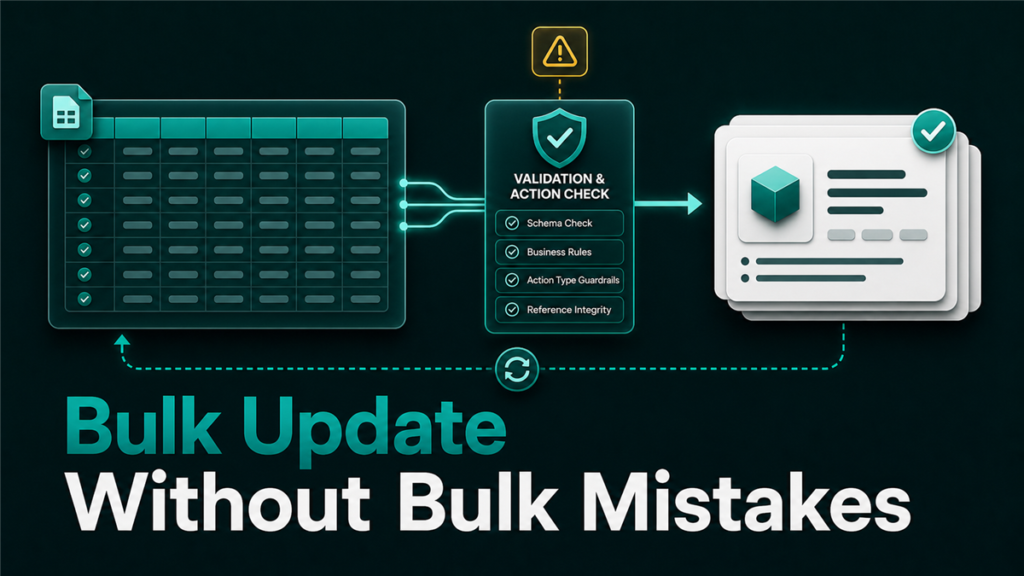
Amazon flat files are spreadsheet templates that let you update multiple listings in a single upload. In practice, Amazon flat file bulk update is one of the fastest and safest ways to scale listing edits. Instead of editing each listing one by one through the Seller Central interface, you download a template, fill in the data for every SKU you want to change, upload the file, and Seller Central processes the updates in batch.
For sellers managing catalogs of 50 or more SKUs, flat files are the most practical way to make bulk changes to titles, bullet points, backend keywords, pricing, images, and product attributes. The workflow is straightforward once you understand the template structure, but the file format is strict. Small errors in column headers, encoding, or product identifiers can cause entire uploads to fail or, worse, overwrite correct data with blanks.
Key Takeaways
- Flat files are spreadsheet templates (tab-delimited text or Excel) structured by product category. Each category has its own template with specific required and optional columns.
- The most common workflow mistakes are using outdated templates, leaving required fields blank on partial updates, and uploading files with encoding issues that corrupt special characters.
- Always use the "Partial Update" action type when changing specific attributes. "Update" and "Delete" action types can overwrite or remove data you did not intend to change.
- Download a fresh template before every bulk update. Amazon changes column headers, adds required fields, and updates valid value lists without advance notice.
- Verify every upload by checking the processing report and then spot-checking the live detail pages. A clean processing report does not guarantee the changes applied correctly.
When to Use Flat Files vs Seller Central
Flat files are the right tool when you need to update more than 10 listings at once, when the changes span multiple fields across many SKUs, or when you need a documented record of what was submitted.
Seller Central's listing editor is faster for single-listing edits: title adjustments, image swaps, or price changes on individual products. For those tasks, opening a flat file template is unnecessary overhead.
The decision point is volume and consistency. If you need to standardize bullet point formatting across 200 SKUs, update backend keywords for an entire brand, or adjust pricing across a product line, flat files are the only practical option.
Step 1: Download the Right Template
Amazon provides category-specific flat file templates through Seller Central. The template for electronics differs from the template for kitchen products, and using the wrong template is one of the most common upload failures.
To download the correct template:
Navigate to Catalog in Seller Central, then select Add Products via Upload. Choose your product category. Amazon will generate a template with the columns, valid values, and data definitions specific to that category.
The template typically contains multiple tabs:
The Template tab is where you enter your data. The Data Definitions tab explains what each column expects: data type, character limits, accepted values, and whether the field is required. The Valid Values tab lists the exact accepted entries for dropdown-style fields like color, size, material, and item type keyword. The Example tab shows sample data rows.
Read the Data Definitions tab before filling in data. Many upload failures come from entering free-text values in fields that only accept values from the Valid Values list.
Step 2: Understand Action Types

Every row in the flat file requires an action type that tells Amazon what to do with the data. The three main action types behave differently and choosing the wrong one can damage your listings.
PartialUpdate: Updates only the fields you populate. Empty columns are ignored. This is the safest action type for bulk edits because it does not touch attributes you left blank.
Update: Updates all fields. Empty columns may overwrite existing values with blanks, depending on the attribute. This is dangerous for partial edits because leaving a bullet point column empty could delete your existing bullet point.
Delete: Removes the listing entirely. Use only when you intentionally want to delete SKUs from your catalog.
For most bulk editing tasks, PartialUpdate is the correct choice. Use Update only when you are submitting complete, verified data for every field in the row.
Step 3: Prepare Your Data
The data preparation step is where most flat file problems originate. The file format is strict, and errors that look minor in a spreadsheet can cause upload failures or data corruption.
Encoding
Save the file as tab-delimited text with UTF-8 encoding. If you use Excel, be aware that Excel's default CSV export may use a different encoding or delimiter. Smart quotes, curly apostrophes, and special characters from copy-pasted content can break the file parser.
Before saving, search and replace smart quotes with straight quotes, remove any non-ASCII characters that are not part of the product data, and verify that the file opens correctly in a plain text editor.
Product identifiers
Every row needs a product identifier that matches an existing catalog record. For existing listings, use the SKU (your internal identifier) or the ASIN. If the SKU or ASIN in your file does not match an existing record, Amazon may create a new listing instead of updating the existing one, which creates duplicates.
Required fields
Even with PartialUpdate, some fields are required in every row: typically SKU and the action type. The specific required fields vary by category. Check the Data Definitions tab to confirm which columns cannot be left blank.
Character limits
Titles, bullet points, descriptions, and backend search terms all have character or byte limits that vary by category. If your data exceeds the limit, the field will be truncated or rejected. Check the Data Definitions tab for the maximum length of each field, and verify that your data fits before uploading.
Step 4: Upload and Monitor
Upload the completed file through the Add Products via Upload page in Seller Central. After submission, Amazon generates a processing report that shows the status of each row.
Reading the processing report
The processing report contains a row for every record in your file. Each row shows one of three outcomes:
Success: the data was accepted and will be applied. Warning: the data was accepted but with caveats, such as a field being truncated or a non-critical validation issue. Error: the row was rejected. The report includes an error code and description.
Download and review the full processing report. Do not assume a "mostly successful" upload means everything worked. A single error row might be your best-selling product.
Common processing report errors
"SKU does not match any existing ASINs in our records": your product identifier does not match the catalog. Check for typos, leading zeros that were stripped, or UPC/EAN mismatches.
"Value is not valid for this field": you entered a value that is not in the Valid Values list for that column. Check the template's Valid Values tab.
"Attribute is not applicable for this product type": you used a column that does not apply to your product category. This happens when using a generic template for a category-specific product.
Step 5: Verify the Results
A clean processing report means Amazon accepted your data. It does not guarantee the changes appear on the live detail pages. Contribution authority conflicts, competing updates from other sellers, or Amazon's automated systems can prevent your submission from displaying even when the file was processed successfully.
After every upload, spot-check a sample of listings:
Compare the live detail page against the data you submitted. Check titles, bullet points, images, backend keywords, and any other attributes you updated. If a field did not change despite a successful processing report, this is a contribution authority issue. Refer to the escalation paths available through Brand Registry.
For large uploads, build a simple verification spreadsheet: list the SKUs you updated, the fields you changed, and the expected values, then check each one against the live page.
Flat File Workflow for Recurring Updates
Sellers who use flat files regularly should build a repeatable workflow rather than treating each upload as a one-off project.
- Maintain a master data spreadsheet that tracks the current values of key listing fields for every SKU. After each flat file upload, update the master to reflect the changes.
- Schedule regular bulk audits. Download your active listings report monthly and compare it against your master data to catch unauthorized changes, contribution conflicts, or data drift.
- Version your flat files. Name each file with the date and scope: `BulkUpdate_BackendKeywords_2026-06-06.txt`. If an upload causes problems, you can identify exactly which file contained the issue.
- Test large changes in batches. If you are updating 500 listings, upload 50 first, verify the results, and then proceed with the remaining 450. A bad template applied to 500 listings creates 500 problems.
- Keep processed files and processing reports for at least 90 days. If a listing issue surfaces later, the file and report are your documentation.
Mini-Scenario: The Bullet Points That Disappeared
A seller managing a catalog of 300 household products used the Update action type to change backend keywords across all SKUs. The backend keyword columns were filled correctly, but the bullet point columns were left blank because the seller did not intend to change them. The Update action type treated the blank bullet point fields as intentional: it overwrote the existing bullets with empty values. Three hundred listings lost their bullet points overnight.
The seller's process error was choosing Update instead of PartialUpdate. The fix took two days: pulling the old bullet point data from a backup export, rebuilding the flat file with PartialUpdate as the action type, and re-uploading. The revenue impact during those two days was real, and the entire problem was preventable with the correct action type.
FAQ
What is the difference between a flat file and an inventory file?
The terms are often used interchangeably. "Flat file" generally refers to the category-specific listing templates used for creating or updating product data. "Inventory file" sometimes refers to simpler templates used only for price and quantity updates. Both are uploaded through the same Add Products via Upload interface in Seller Central.
Can I use one flat file template for products in different categories?
No. Each product category has its own template with specific columns, valid values, and required fields. If your catalog spans multiple categories, you need a separate file for each category. Attempting to use a single template across categories will produce errors for any product that does not match the template's category.
How long does it take for flat file changes to appear?
Processing typically begins within minutes of upload. Simple changes like price and quantity updates can appear within an hour. Catalog data changes such as titles, bullets, and images may take up to 24 hours. If changes have not appeared after 48 hours, check the processing report for errors or investigate a possible contribution authority conflict.
Can flat files overwrite data I did not intend to change?
Yes, if you use the Update action type. Blank fields in an Update row can overwrite existing values with empty data. Always use PartialUpdate when you only want to change specific fields. This is the single most important rule for safe flat file usage.
Is there a maximum number of rows I can upload?
Amazon sets limits on file size and row count that may vary over time. As a practical matter, files with more than a few thousand rows can be slow to process and harder to troubleshoot. For very large catalogs, break the upload into batches of 500 to 1,000 rows.
Building a Reliable Bulk Update Process
Flat files are the most powerful catalog management tool available in Seller Central, and the most dangerous when used carelessly. The difference between a smooth bulk update and a catalog disaster is almost always process: using the right template, choosing the right action type, validating the data before upload, and verifying the results after.
Sellers who build a repeatable flat file workflow, with versioned files, master data tracking, and batch verification, can manage catalogs of any size without surprises. Sellers who treat each upload as improvisation will eventually overwrite something they did not intend to lose.
If your catalog needs a bulk cleanup, standardization pass, or ongoing data management and your team does not have the bandwidth for the verification work, Qubeq can manage the flat file workflow end to end. We manage catalog operations across 20,000+ listings and run bulk updates as part of ongoing catalog maintenance.