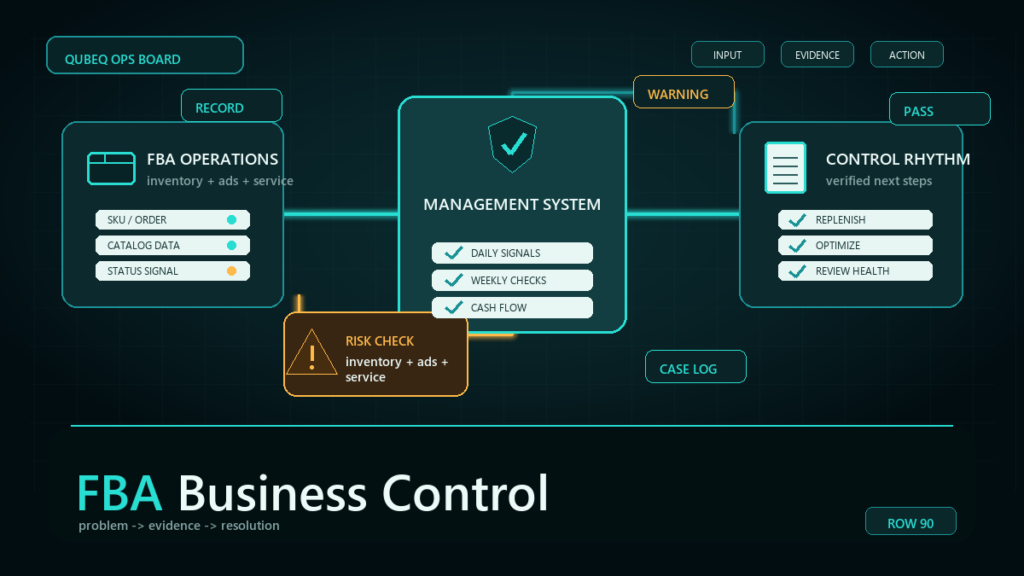
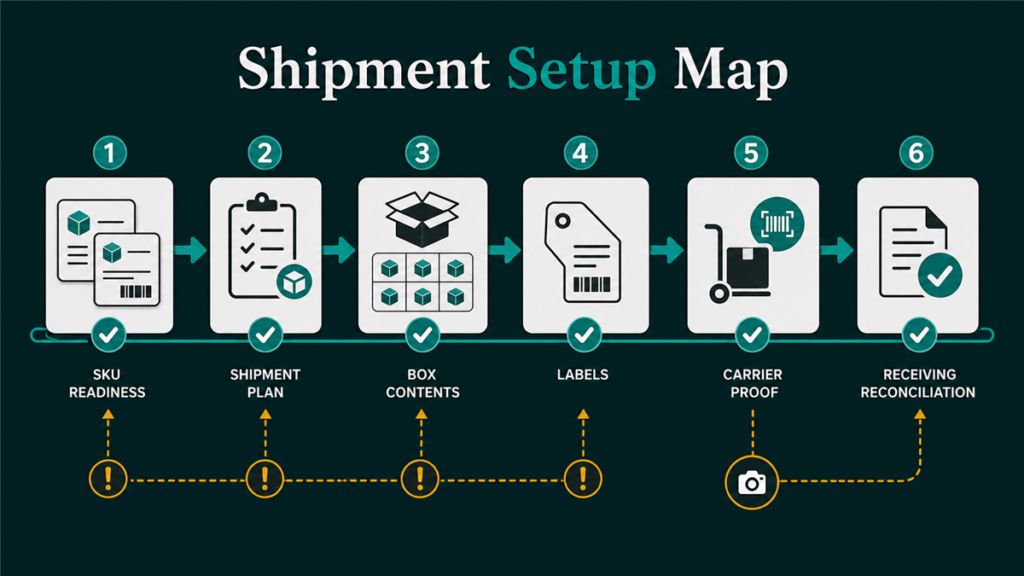
The Send to Amazon workflow is Amazon's shipment creation process for preparing FBA inventory and moving it into Amazon fulfillment centers. Sellers should treat the workflow as an operations checkpoint covering SKU readiness, prep, box content, labels, carrier details, and post-receiving reconciliation.
Key Takeaways
- Send to Amazon is not just a button-click process. It depends on clean SKU data and accurate shipment records.
- Sellers should prepare prep requirements, labels, packing choices, box content, and carrier information before starting.
- Exact Seller Central screens and labels can change, so operators should verify the current workflow before publishing or training a team.
- Poor box content, labeling, and quantity records create downstream reconciliation problems.
- The shipment is not complete until received units are reconciled against expected units.
What is the Send to Amazon workflow?
The Send to Amazon workflow is the Seller Central process used to create and manage FBA inbound shipments. The workflow helps sellers select inventory, confirm packing details, prepare labels, choose shipping details, and track inbound movement.
The exact steps can vary by product, packing method, shipment type, marketplace, carrier, and current Seller Central layout. Instead of memorizing screens, sellers should understand the operating decisions behind the workflow.
The main operating question is: can the seller prove what was sent, how it was packed, where it went, and what Amazon received?
What to prepare before starting Send to Amazon
Sellers should prepare SKU readiness, inventory counts, prep requirements, box content, and carrier information before starting Send to Amazon. Starting the workflow without clean data increases shipment errors.
Prepare:
- Active SKU and FNSKU records.
- Correct product condition.
- Accurate available inventory quantity.
- Prep and labeling requirements.
- Case-pack or individual-unit packing details.
- Box dimensions and weights where needed.
- Carton-level content records.
- Carrier and shipment method information.
- Internal warehouse or prep center records.
If the seller does not know what is in each box, reconciliation becomes harder later.
Send to Amazon workflow steps sellers should understand
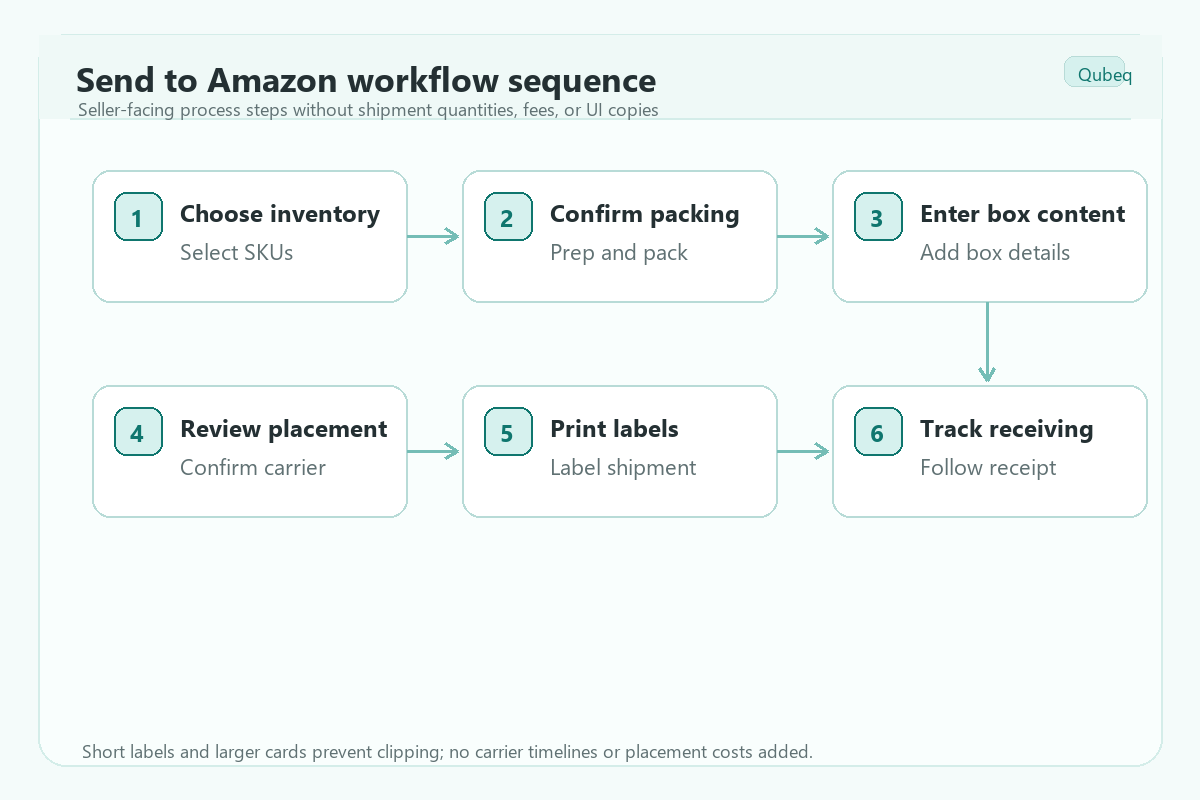
Send to Amazon workflow steps should be understood as checkpoints, not fragile screen instructions. Seller Central labels can change, but the operating logic stays consistent.
1. Choose inventory to send
The seller starts by selecting eligible inventory and confirming which SKUs will move into FBA. This step depends on listing status, SKU setup, condition, and FNSKU readiness.
Before moving forward, check:
- SKU is active and tied to the correct ASIN.
- FNSKU or labeling choice is correct.
- Product condition is accurate.
- No catalog or compliance issue blocks shipment.
- Quantity matches what the warehouse can actually ship.
2. Confirm packing method and prep requirements
Packing decisions affect labels, box content, shipment routing, and receiving accuracy. Sellers should know whether units are packed individually, in case packs, or across mixed cartons.
Check:
- Prep category and packaging needs.
- Unit label requirements.
- Case-pack quantities.
- Mixed-SKU carton details.
- Expiration date handling if applicable.
- Fragile, hazmat, or other special handling flags if applicable.
Current prep and labeling requirements should be verified in Seller Central before shipment.
3. Enter accurate box content
Box content is one of the most important controls in the Send to Amazon workflow. Amazon needs to know which units are in which boxes so receiving can be matched correctly.
Common box-content mistakes include:
- Total units are correct but carton-level units are wrong.
- SKU is assigned to the wrong box.
- FNSKU label does not match the product.
- Box weight or dimensions are inaccurate.
- The warehouse changes carton contents after the shipment workflow is created.
Box content should match the physical shipment, not the first draft of the shipment plan.
4. Review placement, shipping, and carrier details
Shipping choices can affect where inventory is sent, how cartons or pallets are labeled, and what evidence is available later. Sellers should review placement options, shipment method, carrier details, labels, and tracking requirements.
Check:
- Shipment destination or destinations.
- Small parcel, less-than-truckload, or pallet workflow where relevant.
- Carrier selection.
- Tracking or bill of lading records.
- Box or pallet labels.
- Any placement-related cost or routing details shown in the current workflow.
Do not assume the cheapest or fastest path without reading the current shipment details.
5. Print and apply labels accurately
Labels connect the physical shipment to the Seller Central record. A label mistake can create receiving delays, missing units, or inventory assigned to the wrong identifier.
Check:
- Unit labels if required.
- Box labels.
- Pallet labels if applicable.
- Label readability.
- Correct label on the correct carton.
- No reused, covered, or conflicting labels.
Warehouse teams should use a final carton audit before pickup.
6. Track shipment movement and receiving
The Send to Amazon workflow does not end when labels are printed. The seller should track pickup, delivery, receiving, and any discrepancy.
After shipment:
- Save carrier tracking.
- Monitor delivery status.
- Check received quantities.
- Review receiving delays or discrepancies.
- Reconcile expected versus received units.
- Save the final outcome in an operations log.
This step creates the evidence needed for later discrepancy or reimbursement review.
Common Send to Amazon mistakes
Common Send to Amazon mistakes include stale SKU data, wrong labels, weak box-content records, inaccurate counts, and no post-receiving reconciliation. These errors often show up later as missing units or support cases.
Avoid:
- Creating shipments before listings are ready.
- Relying on memory for prep requirements.
- Changing carton contents after box content is submitted.
- Mixing FNSKU labels.
- Printing labels before the final pack audit.
- Losing carrier proof.
- Ignoring receiving discrepancies after delivery.
The workflow is cleaner when warehouse, account management, and reimbursement teams follow the same shipment record.
Post-receiving reconciliation checklist
Post-receiving reconciliation confirms whether Amazon received what the seller sent. This should be part of the Send to Amazon workflow, not an afterthought.
- Compare expected units with received units.
- Check shipment status.
- Review missing or over-received units.
- Check inventory adjustments and reimbursements.
- Pull box content and carrier evidence if needed.
- Decide whether the issue is still pending, resolved, seller-side, or case-ready.
- Record the outcome for future shipment audits.
This step protects the seller from filing premature or unsupported cases.
Mini-scenario: shipment setup mistake creates missing-unit confusion
A seller creates an FBA shipment for 500 units across 20 cartons. The warehouse changes the carton mix after the shipment is created but does not update the box-content records. Amazon later receives fewer units for one FNSKU and more units for another.
At first, the team assumes Amazon lost inventory. The audit shows the physical carton records and the Seller Central box content do not match. The fix is not only a case response. The team needs a final pack audit before labels are applied.
FAQ
What is Send to Amazon?
Send to Amazon is the Seller Central workflow sellers use to create FBA inbound shipments, confirm packing details, prepare labels, choose shipping details, and track inbound inventory.
Is Send to Amazon the same as a shipment plan?
Send to Amazon is the current workflow for creating and managing FBA shipment setup. Sellers should verify current Seller Central terminology before publishing training materials.
What should I prepare before using Send to Amazon?
Prepare SKU/FNSKU readiness, inventory quantities, prep requirements, packing method, box content, carrier information, labels, and warehouse records.
Why is box content important?
Box content helps Amazon match physical cartons to shipment records. Weak box-content records can create receiving issues, discrepancies, and harder reimbursement cases.
Can Qubeq help manage FBA shipment setup?
Yes. Qubeq can help sellers clean SKU records, prepare shipment workflows, document box content, and reconcile received units after Amazon receives the shipment.
Treat shipment setup like an operations control
The Send to Amazon workflow is where many future FBA problems either begin or get prevented. If your team is dealing with shipment errors, missing units, weak box-content records, or repeated reconciliation cases, Qubeq can review the workflow and build a cleaner operating standard.