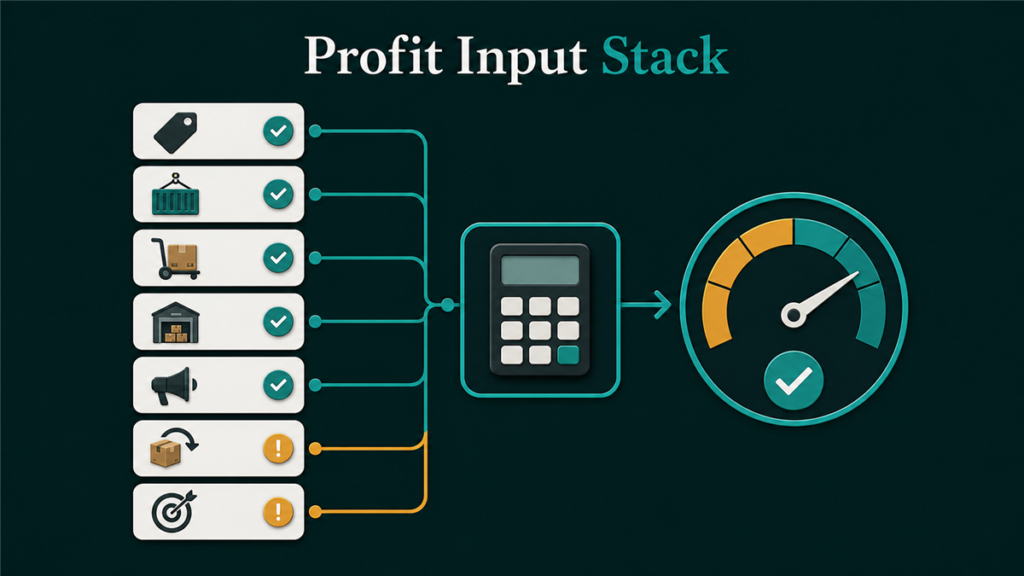
An Amazon FBA profitability calculator is only useful when sellers enter complete, accurate per-unit economics. That means selling price, referral fees, FBA fulfillment fees, storage costs, inbound shipping, COGS, advertising spend, return costs, and every other per-unit expense. Most sellers who think they are profitable have never run this full calculation.
Key Takeaways
- A profitability calculator is a decision tool, not a revenue estimator. It should tell you whether a product is worth selling at current costs.
- Amazon's Revenue Calculator is a useful starting point for fee previews, but it does not include advertising, returns, COGS, or overhead, so sellers need to layer those costs in separately.
- The most common mistake is omitting cost categories: advertising, returns, inbound shipping, prep, and seasonal storage surcharges frequently get left out.
- FBA fee structures change over time, so sellers should check current Amazon fee estimates and then add their own real operating costs before making inventory decisions.
- Contribution margin (not gross margin) is the number that matters. If the margin cannot absorb normal cost variance, the product is not profitable enough to scale.
Use the FBA Profitability Calculator
Use the calculator after you have current product costs, referral and fulfillment assumptions, shipping and storage inputs, ad cost, and return assumptions in place. It helps you estimate per-unit margin before committing budget and inventory.
[wpcode id='6273']
What a Profitability Calculator Should Include
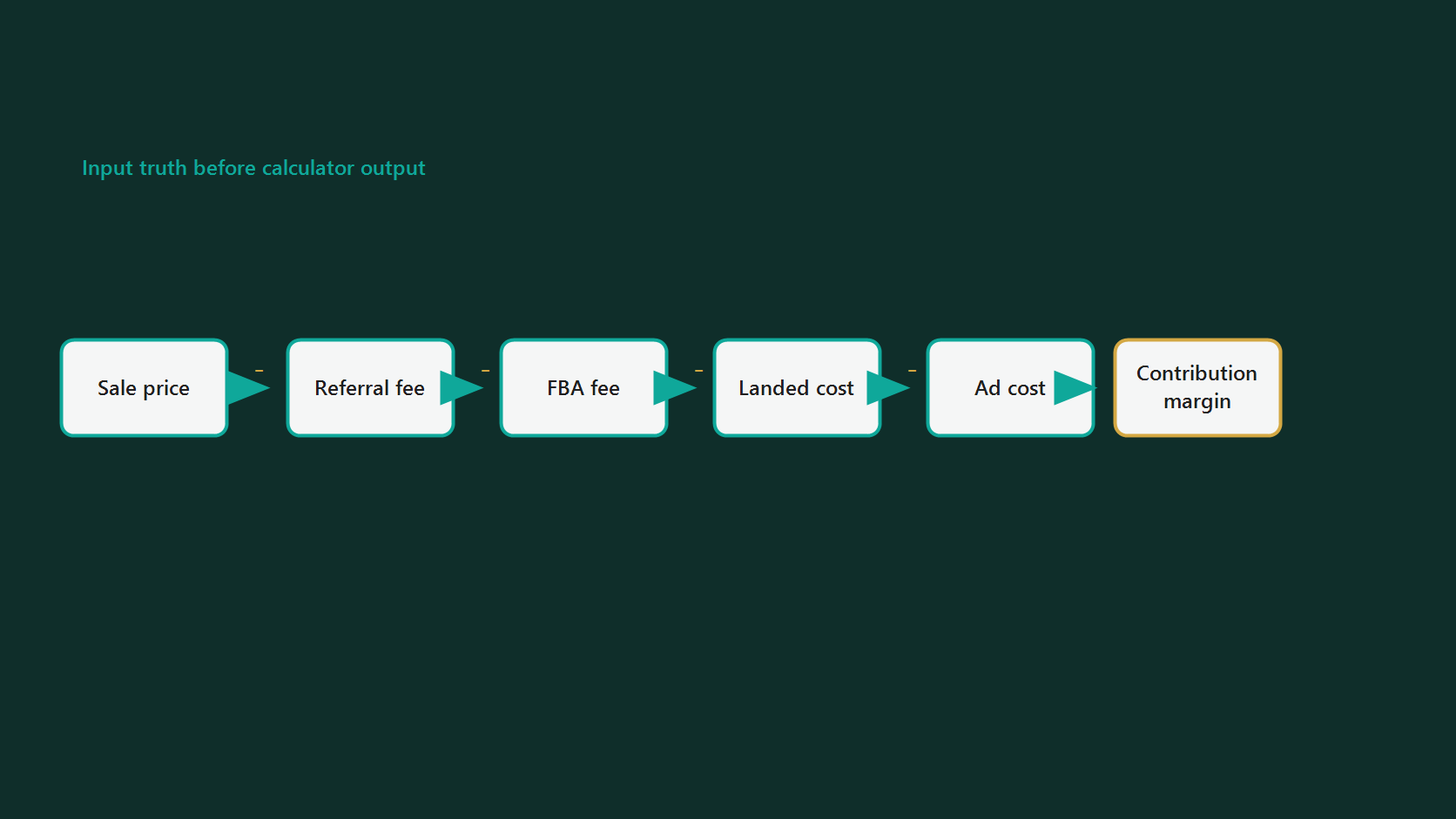
A useful FBA profitability calculator subtracts all relevant costs from revenue to show net profit, contribution margin, and ROI per unit. The cost categories sellers need to account for include the following.
Revenue Side
Selling price per unit, expected monthly units, and any discounts, coupons, or promotional pricing that reduce effective revenue.
Amazon Fee Side
Referral fee: varies by product category and selling price. FBA fulfillment fee: varies by product size, weight, price tier, and fulfillment program. Monthly storage fee: depends on product size, season, cubic footage, and inventory age. Inbound placement fee: may apply depending on how inventory is routed into Amazon's fulfillment network. Returns processing fee: applies in categories where Amazon charges for return handling.
Seller Cost Side
COGS (product cost, packaging, labeling, prep, quality checks). Inbound shipping to Amazon (freight, customs, duties, insurance). Advertising cost per unit (total ad spend divided by units sold). Return and refund allowance based on actual SKU history or category expectations. Removal or disposal fees for unsold inventory. Overhead: tools, software, staff time, inspections, insurance.
Conditional Costs to Watch
Aged inventory surcharge, low-inventory-level fee, inbound placement fee, returns processing fee, removal or disposal fee, and temporary surcharges can all change the final margin. Treat these as conditional costs: include them when they apply, and confirm current rates through Amazon's official calculator, fee pages, or Seller Central before ordering inventory.
How to Use the Calculator: Step by Step
Step 1: Gather Your Real Numbers
Do not estimate. Pull actual data from supplier invoices for COGS, freight invoices for inbound shipping, Amazon's fee schedule or Revenue Calculator for current fee rates, your advertising dashboard for actual spend per SKU, and your returns report for actual return rates by product.
The most common reason calculators give misleading results is that sellers enter optimistic estimates instead of real numbers.
Step 2: Enter Product and Sales Data
Start with selling price, expected monthly units, and marketplace. Then enter COGS per unit (including all supplier costs, packaging, and prep) and inbound shipping cost per unit.
Step 3: Add Amazon Fees
Use Amazon's Revenue Calculator to preview referral fees and FBA fulfillment fees for your specific product. The Revenue Calculator can compare FBA versus seller-fulfilled estimates, which is useful when evaluating fulfillment options.
Then add monthly storage cost (convert cubic footage to per-unit cost based on your product dimensions and average inventory level), and any applicable inbound placement fee.
If Amazon lists any temporary surcharge or conditional fulfillment charge for your product, include it in the calculation before judging the margin.
Step 4: Add Your Operating Costs
This is where most calculators, including Amazon's own Revenue Calculator, fall short. You need to manually add advertising cost per unit (total monthly ad spend on the SKU divided by units sold), return and refund allowance, removal or disposal budget for slow-moving inventory, and overhead allocation (tools, software, staff time, insurance).
Step 5: Calculate Contribution Margin
Contribution margin per unit = Selling price minus all costs from Steps 2 through 4.
Contribution margin percentage = Contribution margin divided by selling price.
A healthy FBA product usually needs enough contribution margin after all costs to absorb normal variance in ad costs, return behavior, fee adjustments, and price pressure. Thin-margin products can become unprofitable with small changes in any cost category.
Step 6: Run Sensitivity Scenarios
A single-point calculation is not enough. Test what happens to margin if ad cost per unit rises, return rate increases, Amazon fees change, promotional discounts become necessary, or storage costs increase during seasonal inventory periods.
If the product stays profitable across these scenarios, the margin is real. If any single scenario pushes it to breakeven, the product is riskier than the base calculation suggests.
Where Calculations Go Wrong
Sellers who get inaccurate results from profitability calculators typically make one of these mistakes.
Omitting advertising cost. Amazon's Revenue Calculator is useful for fee estimates, but sellers still need to layer in their own ad spend. A product that looks profitable before advertising can become breakeven after PPC cost is included.
Using old fee data. Amazon fees and program rules can change. Always verify current fee rates in Amazon's calculator, public fee pages, or Seller Central before finalizing a product decision.
Ignoring returns. Return behavior varies by category, price point, and product quality. Every return reduces effective revenue and may add a returns processing fee. Sellers who model zero returns often overstate their margin.
Averaging across SKUs. A portfolio average hides that some SKUs are profitable while others lose money. Calculate at the individual SKU level, not the account level.
Forgetting seasonal storage. Storage costs can increase during peak inventory periods. Sellers who stock up for Q4 sales need to account for seasonal storage exposure in their margin calculation.
Mini-Scenario
A seller evaluates a home product and the base calculation looks profitable after Amazon fees. After launch, PPC spend and returns reduce the actual margin much more than expected. The product is technically profitable, but the margin is too thin to absorb future cost increases. The calculator was not wrong. The seller simply left important costs out of the inputs.
Amazon's Revenue Calculator vs. Third-Party Tools
Amazon offers a Revenue Calculator that previews estimated fees, costs, and net proceeds for products. It helps compare FBA versus seller-fulfilled options and can estimate fees for products already in the Amazon catalog or for potential new products.
However, the Revenue Calculator does not include advertising costs, returns, COGS, overhead, or other seller-side expenses. It is a fee preview tool, not a full profitability calculator.
Third-party tools from various providers add features like competitive fee tables, ad spend inputs, margin analysis, and scenario testing. These can be more comprehensive, but they are only as accurate as the data sellers enter.
The best approach is to use Amazon's Revenue Calculator for current fee estimates, then layer in all additional costs using a separate spreadsheet or third-party calculator.
FAQ
What is a good profit margin for Amazon FBA?
A good contribution margin depends on the category, product price, ad intensity, return behavior, and reorder risk. As a practical rule, the product should still make sense after advertising, returns, storage exposure, and a reasonable cost-increase scenario.
Does Amazon's Revenue Calculator include all fees?
No. Amazon's Revenue Calculator is a strong starting point for Amazon-side estimates, but sellers still need to add advertising costs, returns, COGS, inbound shipping, overhead, and any conditional costs that apply to the SKU.
How often should I recalculate FBA profitability?
At minimum, recalculate when Amazon announces fee changes (typically at least once per year) and whenever your COGS, shipping costs, or ad spend changes significantly. Monthly recalculation is better for active sellers.
What is the difference between gross margin and contribution margin?
Gross margin is revenue minus COGS. Contribution margin subtracts all variable costs: COGS, Amazon fees, advertising, returns, inbound shipping, and other per-unit expenses. Contribution margin is the number that matters for FBA profitability decisions.
Should I use FBA or FBM based on the calculator?
If the calculator shows that FBA fulfillment fees consume too much margin (common for oversized, heavy, or low-priced products), compare FBM or 3PL costs. Some sellers use FBA for fast-moving products and FBM for slower or bulkier items.
Getting Your FBA Math Right
An FBA profitability calculator does not make products profitable. It reveals whether they already are, and where the margin leaks hide. The sellers who succeed on Amazon are the ones who run these numbers before ordering inventory, not after the first negative month.
If your FBA margins are unclear, or if you suspect hidden cost leaks across your catalog, Qubeq can review your account's operational economics and identify where margin is being lost to fees, fulfillment inefficiencies, or catalog issues.