The Amazon flat file processing report tells you exactly which rows of your upload succeeded, which failed, and why. Most "Amazon rejected my flat file" problems are solved by reading this report systematically instead of re-uploading the whole file and hoping, because Amazon frequently accepts some rows and rejects others in the same upload.
Key Takeaways
- The processing report is row-level feedback: every rejected or partially accepted row gets a message explaining what blocked it.
- Errors block the row; warnings do not. Triage by severity before fixing anything.
- Map each error back to the exact source row and column, fix only those rows, and resubmit a fix-only file rather than the full original.
- Error message wording varies by template version and product type, so read the message text rather than pattern-matching old fixes.
- A repeatable read-triage-fix-resubmit loop turns bulk upload failures from a fire drill into a 20-minute routine.
What Is the Processing Report?
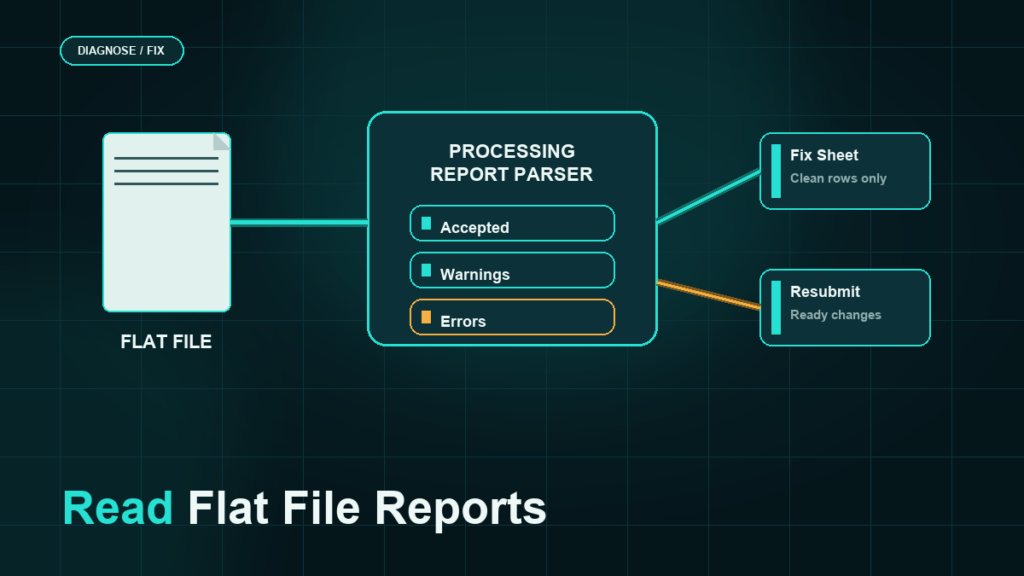
The processing report is the results file Amazon generates after it processes a flat file upload. It contains a summary of how many records were submitted, how many processed successfully, and how many returned errors or warnings, followed by detail rows that identify each problem record, the affected SKU, and a message describing the issue.
One upload, three possible outcomes per row:
- Accepted: the row processed and the change is applied or queued.
- Accepted with warnings: the row processed, but Amazon flagged something worth reviewing.
- Rejected: the row did not process, and the listed error explains why.
This is why a "successful" upload can still leave listings unchanged: the file processed, but specific rows inside it were rejected.
Where to Download the Processing Report
After an upload, the spreadsheet upload status page in Seller Central shows each submission with its processing state and a link to download the processing report once processing completes. The exact menu naming changes over time, but the path runs through the same area used to upload the file.
Two practical habits:
- Wait for the status to show complete before downloading. A report pulled mid-processing can under-report results.
- Save every processing report next to the upload file that produced it, with matching filenames. When a listing problem surfaces weeks later, the paired files show exactly what changed and what failed on that date.
Report Anatomy: What Each Part Tells You
The summary section
The top of the report gives the counts: records submitted, records processed, records with errors, records with warnings. Read this first. If submitted equals processed with zero errors, your problem is not in this upload. If there is a gap, the detail rows explain it.
The detail rows
Each problem row typically identifies:
- The record or row number from your original file, so you can find the source line.
- The SKU affected.
- The error or warning code and the message text.
- In some formats, the specific attribute or column involved.
Errors vs warnings
Treat these differently. An error means the row was rejected and nothing in it was applied. A warning means the row processed but something deserves attention, like a value Amazon adjusted or a recommendation it could not apply. Fix errors now; review warnings in a second pass.
A Triage Method That Scales
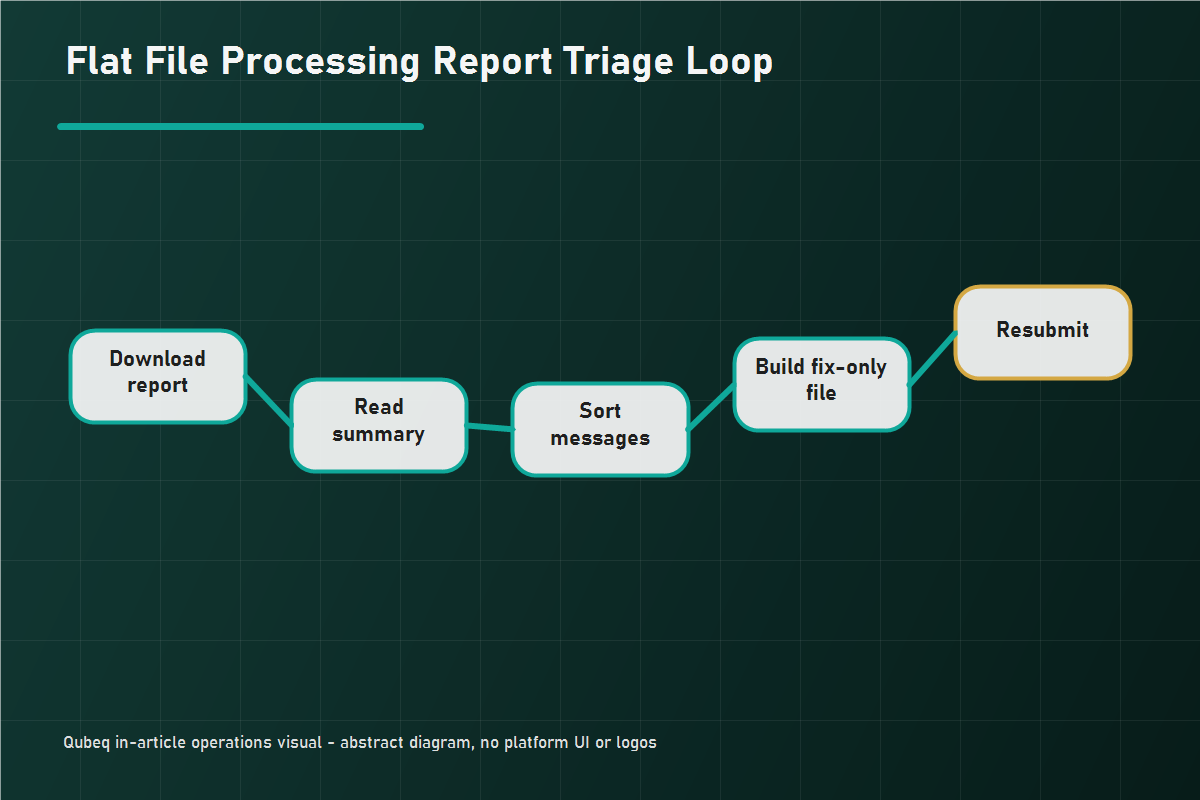
When a large upload returns dozens or hundreds of flagged rows, do not fix them top to bottom. Triage first:
- Sort the detail rows by error message. Hundreds of flagged rows usually collapse into three to six distinct causes.
- Count rows per message. Fix the highest-count message first; one template fix often clears most of the report.
- Separate blocking errors from warnings. Warnings can wait.
- Flag any message you do not recognize for a help-page lookup rather than guessing. Message wording is template- and product-type-specific, and an old fix applied to a new message can make things worse.
Common causes behind large error groups include missing required attributes for the product type, invalid values for restricted fields, conflicts with existing catalog data, and permission or brand-gating blocks. The message text tells you which family you are in.
Building the Fix-Only Resubmission File
Never re-upload the original file with a few cells changed. Build a fix-only file instead:
- Copy the template header rows from the original file into a new file.
- Pull in only the rejected rows, using the row numbers from the processing report.
- Apply the fixes indicated by each error message.
- Confirm the operation mode is correct for what you intend. A full update mode with blank cells can wipe attributes you did not mean to touch.
- Upload the fix-only file and download its processing report.
- Repeat until the error count reaches zero.
This loop keeps each iteration small, auditable, and safe. It also avoids re-processing thousands of already-accepted rows, which shortens processing time and reduces the chance of new accidental changes.
Mini-Scenario: 38 Rejected Rows in a 1,200-Row Update
An operations team uploaded a 1,200-row price and quantity update. The status page showed the file as processed, but the report summary listed 38 records with errors. Sorting the detail rows by message showed two causes: 31 rows rejected for a SKU that did not exist in the account (a stale SKU list from a previous catalog cleanup) and 7 rows rejected for invalid values in the quantity column (text pasted into a numeric field).
The team removed the 31 dead SKUs from their master sheet, fixed the 7 quantity cells, and resubmitted a 7-row fix-only file. Total repair time was under 30 minutes, and the master SKU list defect that caused the bulk of the errors never appeared in an upload again.
FAQ
Why does my upload say successful but nothing changed?
The file processed, but the rows you care about were likely rejected or the change is still propagating. Download the processing report and check the error detail rows for the affected SKUs.
What is the difference between an error and a warning in the processing report?
An error means the row was rejected and not applied. A warning means the row processed but Amazon flagged something to review. Only errors block your changes.
How long does Amazon take to generate the processing report?
Processing time varies with file size and system load, from minutes to considerably longer for very large files. Wait for the upload status to show complete before downloading the report.
Do all upload types produce the same processing report?
No. Report format and delivery differ by template family and upload method, and API-based listing submissions return results in a different form entirely. Read the report you received rather than assuming a fixed layout.
Should I fix errors directly in Seller Central instead of resubmitting?
For one or two rows, an in-console edit is fine. For anything larger, a fix-only flat file keeps the change auditable and repeatable, and it confirms the fix worked via the next processing report.
Make Processing Reports a Routine, Not a Rescue
Reading the processing report is the difference between controlled bulk operations and repeated blind uploads. If your team's flat file uploads regularly come back with unexplained rejections, content that did not apply, or listings that broke after a bulk change, Qubeq can audit the upload workflow, clean up the template and SKU data behind the errors, and set up a repeatable upload QA loop.