Amazon Country of Origin Bulk Cleanup: A Practical Listing Audit Workflow
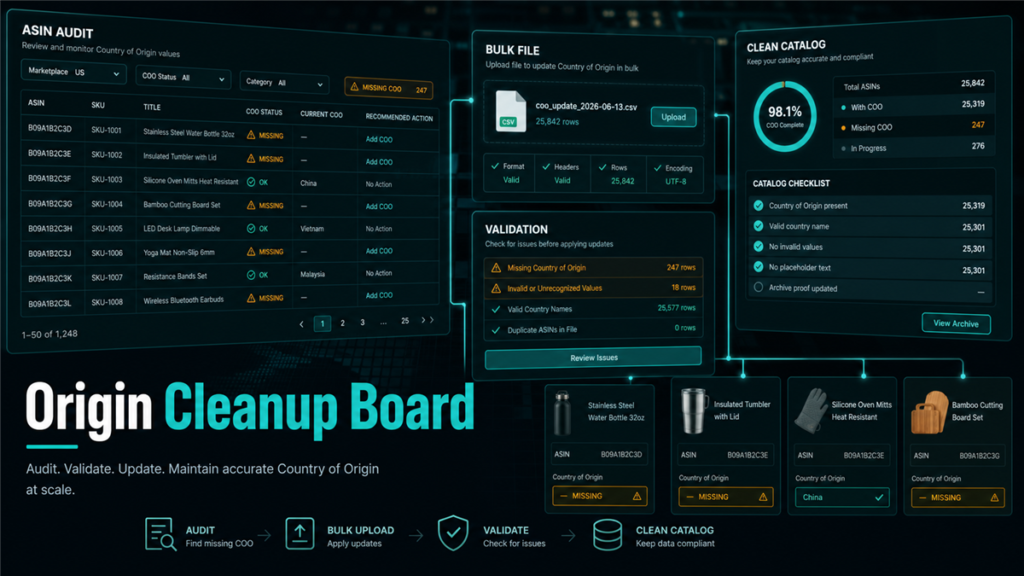
Country of Origin looks like a simple field until you have hundreds or thousands of ASINs with missing, inconsistent, or locked values. Then it becomes a catalog operations problem: which ASINs are affected, which marketplace is asking, whether you can edit the value directly, and how to prove what you changed.
Amazon has directed sellers in forum guidance to update missing Country of Origin data through Manage All Inventory for single products and through bulk workflows for multiple products [S1]. Sellers also report needing reports or flat files so they can identify missing values without manually opening every listing [S3]. This guide turns that into a cleanup process.
Key Takeaways
- Country of Origin is catalog data, not just a one-time compliance checkbox.
- For a small set of ASINs, direct edits in Manage All Inventory may be fastest [S1].
- For larger catalogs, sellers need a report, template, or flat-file workflow to find gaps and update in bulk [S3].
- Keep evidence of before values, upload files, processing reports, and post-update screenshots.
- Cross-border listings can be affected by marketplace-specific requirements, so verify the relevant marketplace before assuming one update solves every issue.
What Country of Origin Means Operationally
Operationally, Country of Origin is the country where the product was made or substantially transformed, as represented in the listing attribute. The exact determination can depend on the product and supply chain, so sellers should use manufacturer or supplier documentation rather than guessing.
For Amazon catalog teams, the important point is simpler: the field must be present, accurate, and consistent across the ASINs and marketplaces where Amazon requires it. If the field is blank, stale, or inconsistent across variations, Amazon may prompt for an update or restrict activity until the missing data is supplied [S1, S3].
This is why Qubeq treats COO cleanup as a catalog audit, not a quick data-entry task.
Step 1: Build the Affected-ASIN List
Start with the ASINs Amazon explicitly flagged. Then expand the review to nearby risk areas:
- Child ASINs in the same variation family.
- Products from the same supplier or factory.
- SKUs created through old listing templates.
- Cross-border listings using copied catalog data.
- ASINs with recent attribute warnings.
If Seller Central provides a report showing missing values, download it and preserve a copy. If not, use available inventory or category reports and compare against your internal item master. Seller Forum discussions show sellers looking for Category Listings Report access because manual review does not scale [S3].
Your working sheet should include:
- ASIN.
- SKU.
- Product title.
- Marketplace.
- Current COO value, if visible.
- Correct COO value from supplier documentation.
- Update method.
- Upload batch or case ID.
- Verification status.
Step 2: Verify the Correct Value Before Uploading
Do not fill the field from memory. Pull the value from a trusted source:
- Manufacturer specification sheet.
- Supplier invoice or item master.
- Product packaging or label.
- Import documentation if available.
- Internal ERP record tied to the supplier.
If your supply chain changed, do not assume older ASINs still share the same origin. A listing created years ago may have a value that was true then and false now, or vice versa. If an ASIN has multiple sourcing locations, ask the manufacturer or compliance lead how the value should be represented before editing.
Step 3: Choose One-by-One vs Bulk Cleanup
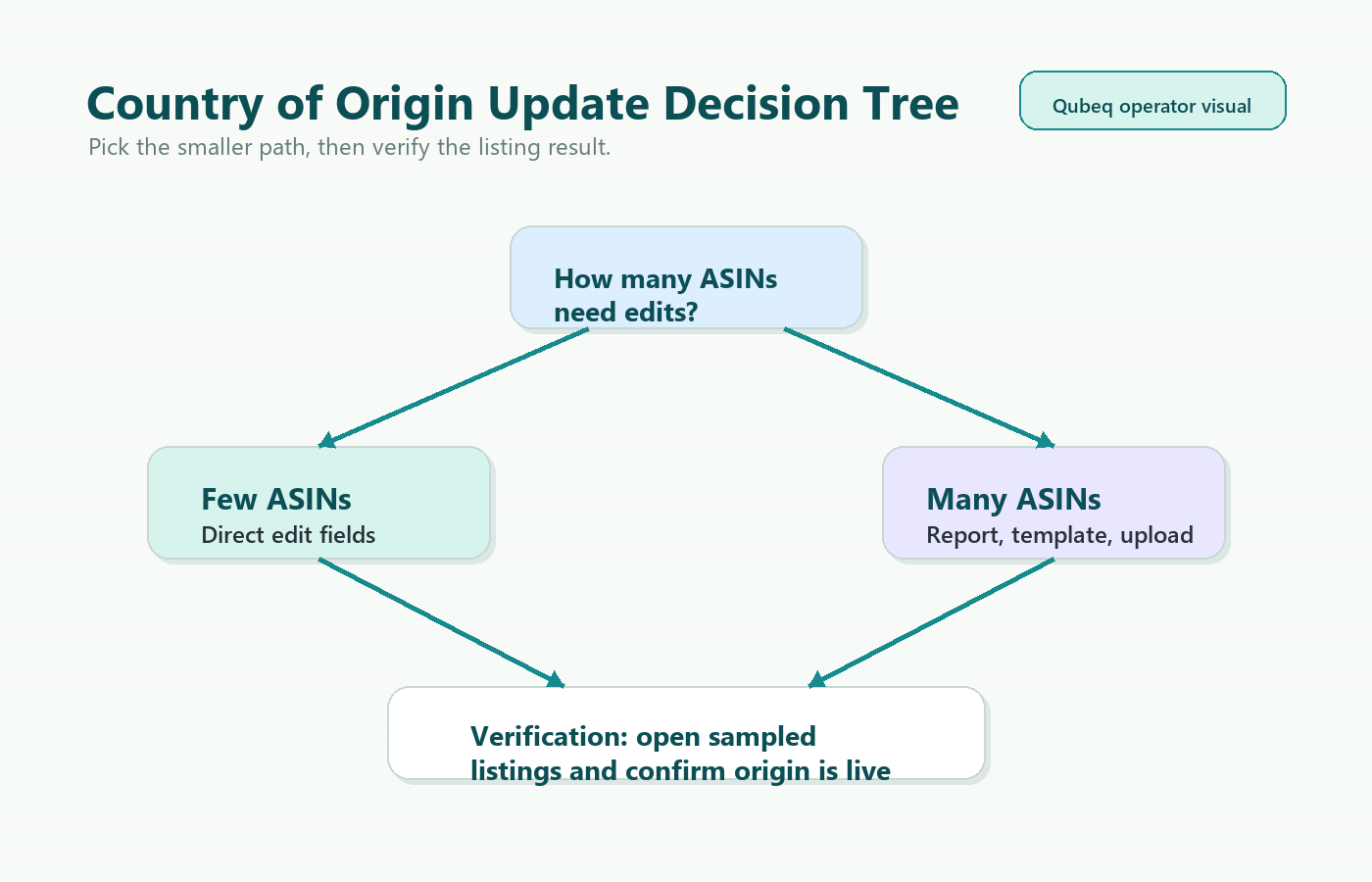
Use direct editing when:
- Fewer than 10 ASINs are affected.
- The values are visible and editable in Manage All Inventory.
- You need to resolve a specific urgent warning.
- You want to test whether the field accepts the value before bulk upload.
Amazon forum guidance for single products points sellers to Manage All Inventory, selecting the product, entering the Country of Origin, and saving [S1].
Use a bulk or flat-file workflow when:
- Many ASINs are missing values.
- Variations need consistent cleanup.
- You need a durable audit record.
- You are correcting multiple attributes at the same time.
- Direct editing is locked, slow, or inconsistent.
Bulk cleanup should be treated as a controlled upload. Save the template, the completed file, the processing report, and screenshots of a sample of updated listings.
Step 4: Watch for Common Failure Points
Country of Origin cleanup can fail in several ordinary ways:
- The field is not available for the product type you are editing.
- The template version does not match the current product type.
- Parent and child ASINs have conflicting values.
- Amazon accepts the upload but the detail page does not visibly update.
- Another catalog contributor overrides your value.
- The marketplace warning remains because a different marketplace or SKU is affected.
- The field is present in one report but missing from another.
When this happens, do not keep uploading the same file. Read the processing report, isolate the error, and create a small test batch. If the field is locked or another contribution is winning, prepare a case with the file, processing report, and supplier evidence.
Step 5: Verify Marketplace Impact
COO cleanup can affect more than the US detail page. If you sell cross-border or use connected offers, check the marketplace where the warning originated. The handoff research notes that cross-border restrictions can be account-specific, and Seller Forum discussions show sellers connecting COO updates with marketplace restrictions [S1, S3].
Verify:
- The warning or notification has cleared.
- The correct marketplace shows the value.
- Child ASINs in the family are not still missing the field.
- No new attribute warnings appeared after the upload.
- The offer remains active where expected.
A Simple COO Cleanup Checklist
- Pull the affected-ASIN list.
- Match each ASIN to supplier-backed COO evidence.
- Decide direct edit or bulk upload.
- Save the before state.
- Make the update.
- Save processing reports.
- Spot-check the detail page and inventory status.
- Open cases only with evidence attached.
- Add COO to your new-item launch checklist so the problem does not return.
FAQ
Can I update Country of Origin one product at a time?
Yes. Amazon forum guidance describes updating a single product through Manage All Inventory [S1]. This is practical for small batches, not large catalogs.
How do I update many ASINs?
Use the appropriate report or listing template available in Seller Central for your account and category. Sellers have specifically asked about Category Listings Report access to review and update COO data in bulk [S3].
Should I guess the country if the supplier is slow to respond?
No. Use supplier or manufacturer-backed documentation. Incorrect catalog data can create a second problem after you solve the first.
Can Qubeq handle COO cleanup?
Yes. Qubeq can turn COO updates into a catalog cleanup project: extract the affected ASINs, map the correct values, prepare the upload, document processing reports, and escalate locked fields.
Closing CTA
Country of Origin cleanup is one of those jobs that looks small until the catalog is large. If your team is stuck manually opening listings, chasing locked attributes, or trying to reconcile flat-file errors, Qubeq can run the cleanup as a controlled catalog audit and leave you with a reusable process.