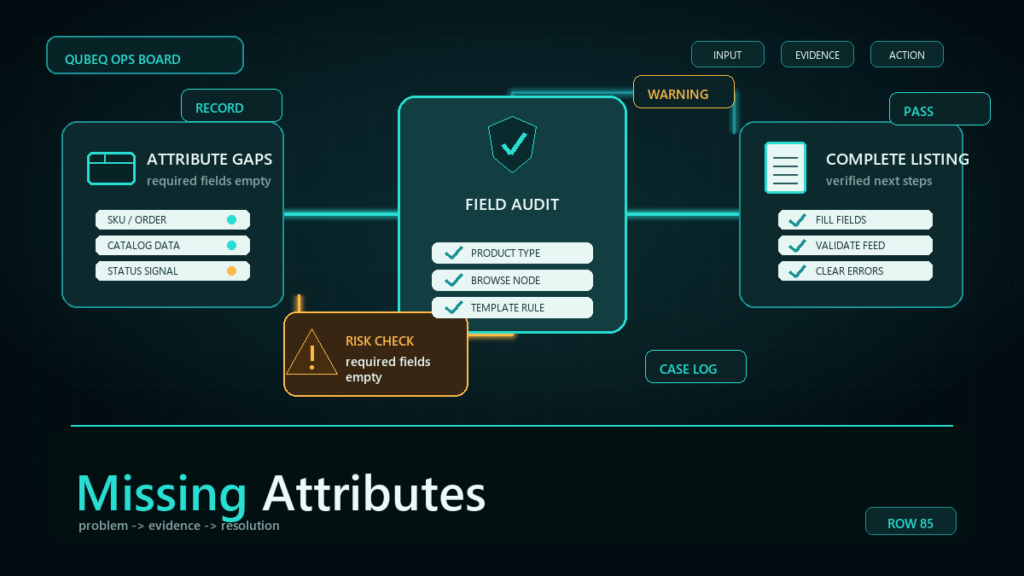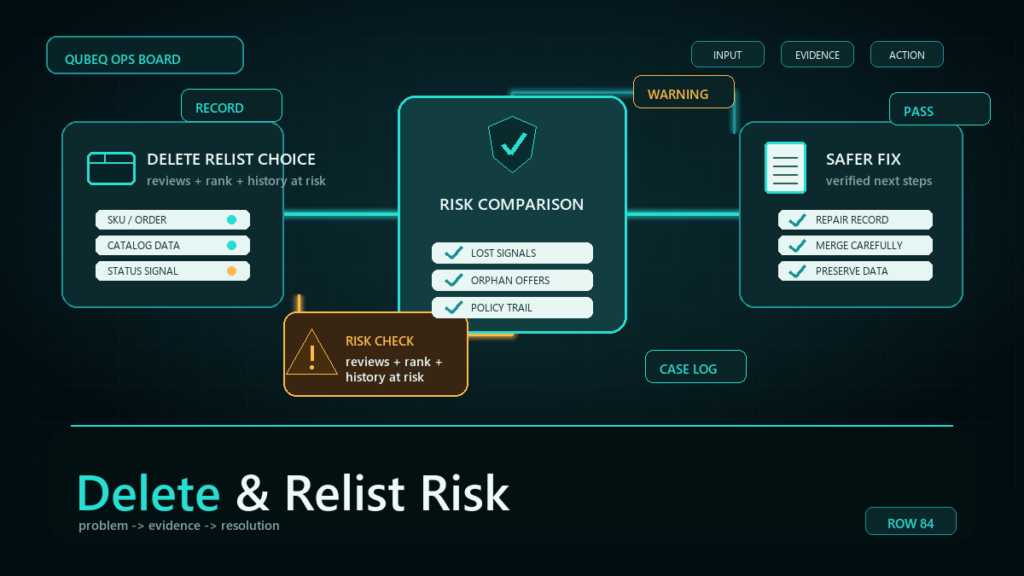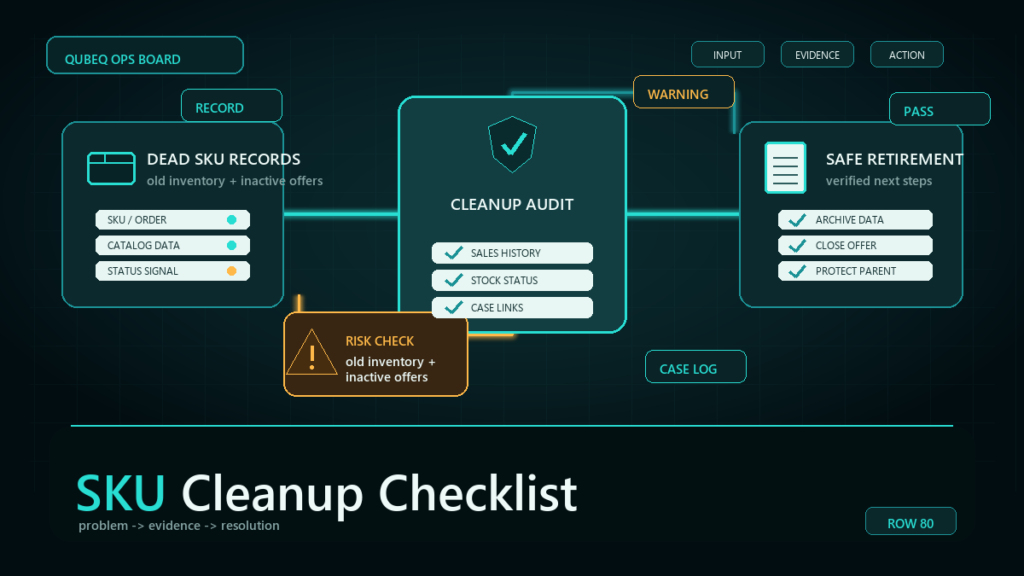
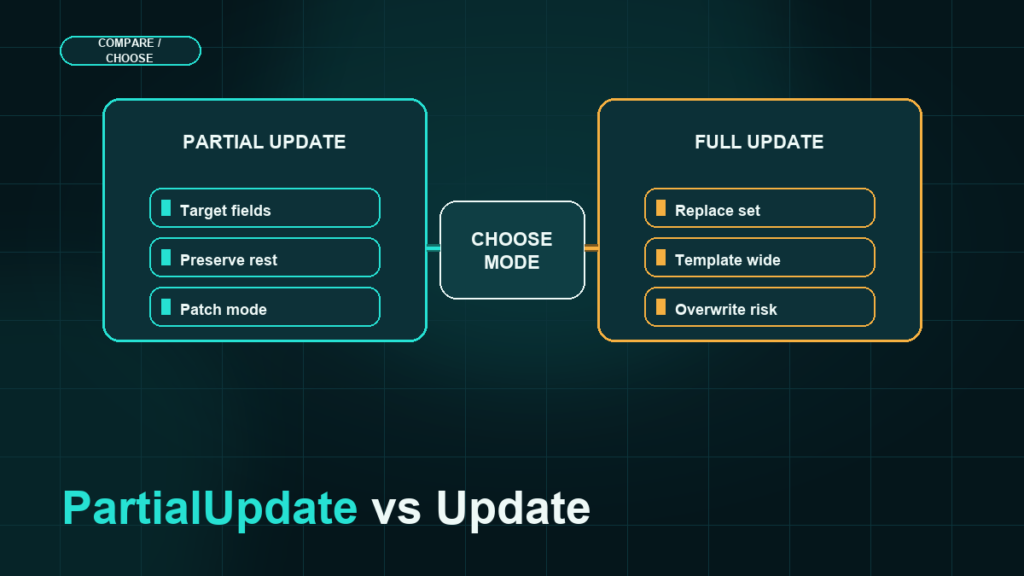
In an Amazon flat file, `Update` replaces the full set of attributes you control for that SKU, while `PartialUpdate` changes only the fields you filled in and leaves everything else alone. The difference sounds small, but it is the single most common cause of bulk listing content loss: a full Update with blank content columns can erase titles, bullets, and descriptions across every row in the file.
Key Takeaways
- `Update` treats your row as the complete record. Blank cells can be processed as "remove this attribute," not "skip this attribute."
- `PartialUpdate` modifies only the attributes you supply and ignores blank cells, which makes it the safer default for routine edits.
- `Delete` removes your contribution or offer entirely and should almost never appear in a routine update file.
- Some attributes and template types do not support partial updates, so the mode decision depends on the template you are using.
- A pre-upload safety routine (current-data export, one-SKU test, file versioning) catches mode mistakes before they hit the whole catalog.
What the update_delete Field Actually Does
Most listing flat files include an operation column, commonly named `update_delete`, that tells Amazon how to process each row. The accepted values typically include:
- `Update`: a full update. Amazon processes the row as the complete set of attribute values you are contributing for that SKU.
- `PartialUpdate`: a partial update. Amazon changes only the attributes you provided values for and leaves your other existing contributions in place.
- `Delete`: removes your contribution for that SKU, which can deactivate or remove your offer depending on the template and context.
The exact behavior is defined per template in its data definitions documentation, and template families differ. Check the data definitions tab of the template you are actually using rather than relying on behavior remembered from another category.
Why Blank Cells Are the Real Danger
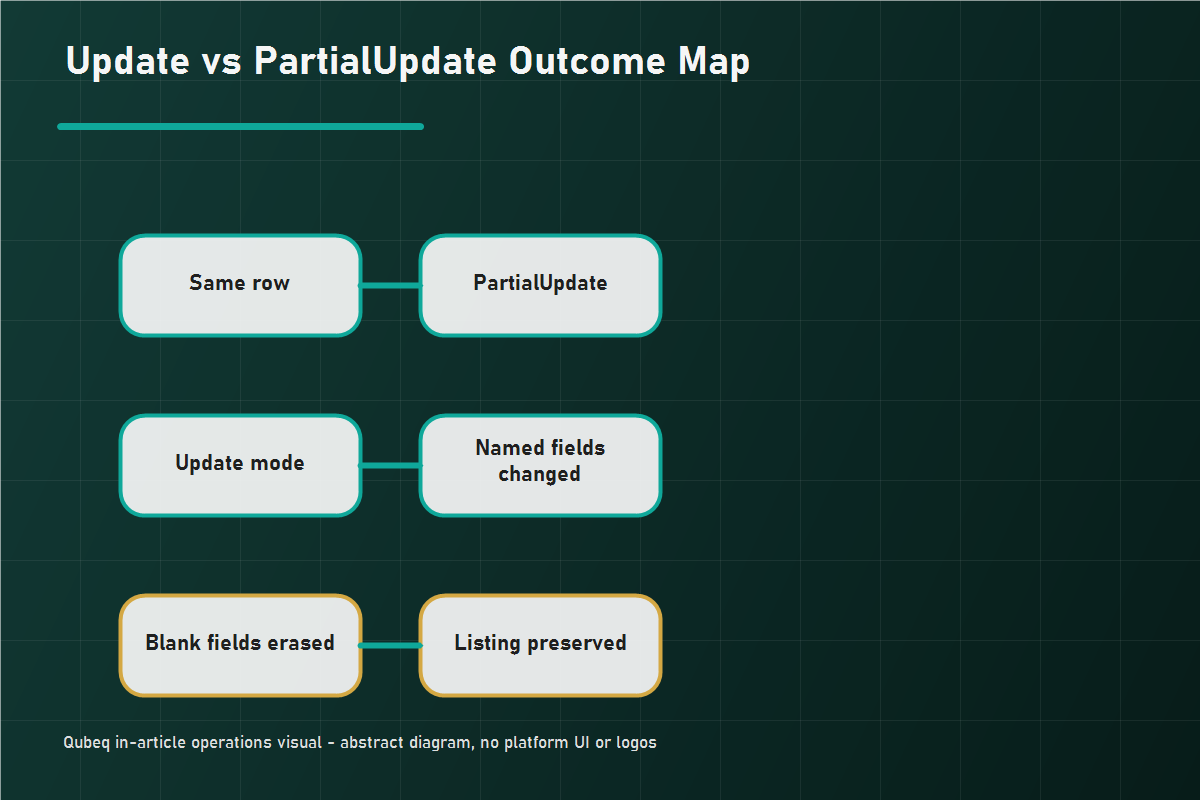
The damage mechanism is blank cells under full Update mode.
Picture a price-and-title update file built from a fresh template. The file has columns for bullets and description, but nobody filled them because "we're not changing those." Under `PartialUpdate`, those blanks are ignored. Under `Update`, Amazon can interpret the row as "this seller's complete contribution no longer includes bullets or a description," and the listing content disappears after processing.
That is how a routine pricing file wipes content across hundreds of ASINs in one upload. The seller did not delete anything in any visible sense; the mode did.
Two related effects make the damage worse:
- The change often is not noticed immediately, because the file "processed successfully." Content removal is not an error.
- Restoring content requires re-contributing it, and if no current export exists, the team is rebuilding bullets and descriptions from memory or old drafts.
When to Use Update
Full `Update` is the right choice when you intend to define the complete record:
- Creating new listings, where every required attribute must be present anyway.
- Deliberately restructuring a listing or variation family, where you want stale attribute values gone.
- Re-contributing a complete, corrected record after a content incident.
The discipline for full Update is simple: every column you control must contain the correct current value, not just the fields you are changing. Export the current listing data first and populate the file from it.
When to Use PartialUpdate
`PartialUpdate` is the right default for routine operations:
- Price, quantity, or handling-time changes.
- Updating one content field, like titles, without touching others.
- Fixing a single attribute flagged in a processing report or listing-quality view.
- Incremental keyword or attribute improvements.
Note the limits: not every attribute or template supports partial updates, and some structural changes (variation relationships, product type changes) may require complete records to process correctly. When a partial row fails, the processing report message usually points to the attribute that needs the fuller record.
The Delete Mode Warning
`Delete` is not "delete this cell." It removes your contribution for the SKU, and in offer contexts it can remove the offer itself, stranding any FBA inventory attached to it. Delete rows belong in deliberate catalog-removal projects with their own checklist, never in a routine update file. If you inherit a template from a previous project, check the operation column for leftover Delete values before reusing it.
Pre-Upload Safety Checklist
- Export current listing data before any content-affecting upload, so a restore file exists.
- Check the operation column on every row, especially in reused or inherited files.
- Confirm blank columns are intentional under the mode you chose. If the mode is Update, there should be no blank cells in columns you control.
- Test with one SKU first for any file that touches content, then verify the listing after processing.
- Version the file with a date and change description, and keep the processing report with it.
- Recheck a sample of listings 24 hours after the full run, because some changes propagate slowly.
Mini-Scenario: 60 ASINs Lose Their Bullets
A supplements brand needed a quick title refresh across 60 ASINs. The catalog assistant copied last quarter's full listing template, pasted in the new titles, left the bullet and description columns empty, and kept the operation column on `Update` because that is what the old file used. The upload processed cleanly. Three days later, customer questions spiked and conversion dropped: every affected listing was showing no bullet points.
The recovery took longer than the original project: no recent export existed, so the team rebuilt bullets from an old content document, re-uploaded a complete record per ASIN, and waited for propagation. The process fix afterward was a one-line rule in their SOP: routine edits ship as `PartialUpdate`, and any `Update` file requires a same-day export of current data first.
FAQ
What is the difference between Update and PartialUpdate in Amazon flat files?
Update processes your row as the complete attribute record for the SKU, so missing values can be removed from the listing. PartialUpdate changes only the fields you filled in and ignores blanks.
Does PartialUpdate ever overwrite existing data?
Yes, for any field you supply a value in. PartialUpdate ignores blank cells, but a wrong value in a filled cell still overwrites the current one. It protects you from blanks, not from bad data.
Why did my flat file delete my bullet points?
Most likely the file ran in full Update mode with empty bullet columns, which Amazon processed as removing those attributes. Restore them by re-contributing complete content, and switch routine edits to PartialUpdate.
Can I use PartialUpdate for every template?
No. Support varies by template family and attribute, and some structural changes need complete records. Check the data definitions documentation in the template you are using.
What does Delete do in the update_delete column?
Delete removes your contribution or offer for that SKU rather than clearing a field. It can deactivate the listing and strand FBA inventory, so it should only appear in deliberate removal projects.
Protect Listing Content Before the Upload
The mode decision takes five seconds and protects months of listing content work. If your catalog has already lost content to a bad bulk file, or your team runs frequent flat-file operations without a safety routine, Qubeq can restore the affected listings, rebuild the upload SOP, and put version control around your flat file process so one wrong cell never wipes a catalog again.