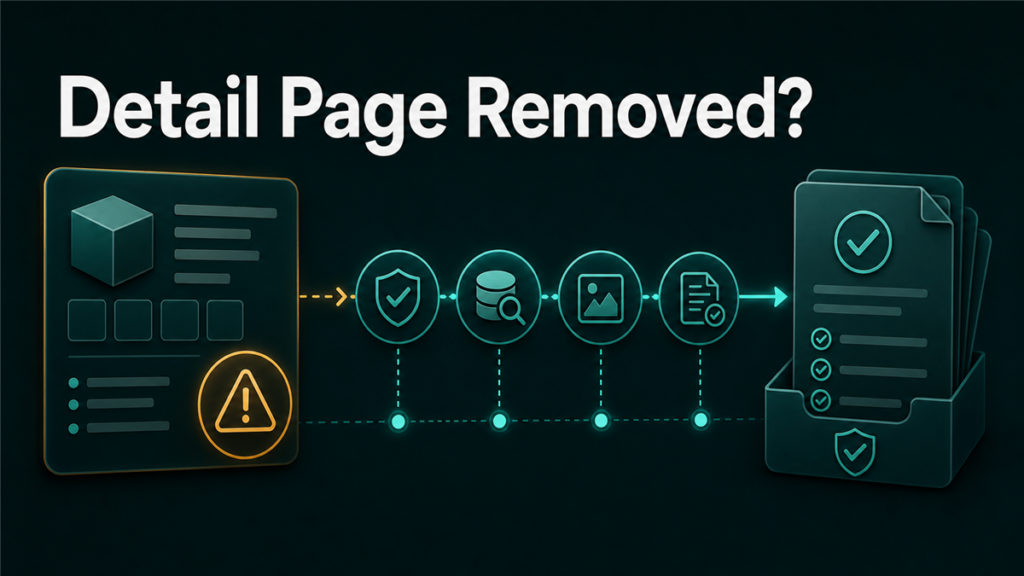
When sellers see a detail page not available Amazon issue, they should not start by opening a vague support case. The first step is to identify whether the issue is a policy removal, catalog data conflict, browse node problem, image or compliance issue, or a temporary listing status problem. A clean diagnosis helps the seller avoid circular Seller Support replies and gives Amazon the evidence needed to review the ASIN.
Key Takeaways
- "Detail page not available" can point to policy, catalog, offer, browse node, image, or account health problems.
- The fastest path is to check Manage Inventory, Account Health, Performance Notifications, and the listing edit screen before opening a case.
- Amazon product detail page rules matter because inaccurate, misleading, duplicate, or restricted product data can trigger removals.
- Sellers should collect screenshots, ASIN/SKU details, upload processing reports, and compliance documents before escalating.
- Do not create a duplicate ASIN to work around the issue. Fix the underlying catalog or policy problem.
What Does "Detail Page Not Available" Mean on Amazon?
"Detail page not available" means the product detail page is not visible or usable in the expected way for buyers, sellers, or both. The ASIN may still exist in Amazon's catalog, but the offer or page is blocked, inactive, removed, suppressed, or disconnected from the seller's editable listing.
The exact wording varies by account and marketplace. Sellers may see messages such as:
- Detail Page Removed
- Listing inactive
- Search suppressed
- Product detail page rules violation
- This detail page was removed for potential policy violations
- Listing not buyable
- ASIN unavailable
These labels are not interchangeable. A search suppression usually points to missing or noncompliant listing content. A detail page removal may point to policy, catalog, or product data issues. A not-buyable offer may involve price, inventory, eligibility, or account-level restrictions.
Why an Amazon Detail Page Becomes Unavailable
An Amazon detail page becomes unavailable when Amazon's catalog, policy, or offer systems decide the page should not be shown or sold in its current state. The most common causes are inaccurate product information, restricted product triggers, missing required attributes, image compliance issues, duplicate ASIN conflicts, and unresolved account health notifications.
Common root causes include:
| Cause | What the seller may see | What to check |
| Product detail page rules issue | Detail page removed or content edit rejected | Title, bullets, images, brand, variation structure |
| Restricted product trigger | Policy warning, blocked listing, or no clear edit path | Account Health and Performance Notifications |
| Browse node or product type mismatch | Listing exists but cannot be found or edited correctly | Product type, item type, browse node |
| Image or claims compliance issue | Search suppression or product policy flag | Main image, claims, packaging, medical or safety wording |
| Duplicate ASIN or catalog conflict | Contribution rejected or detail page unavailable | Existing ASINs, UPC/GTIN, brand ownership |
| Offer-level problem | Page exists but offer is not buyable | Price, inventory, shipping template, account eligibility |
First Checks Before Opening a Seller Central Case
The first checks should confirm whether Amazon has already explained the issue somewhere inside Seller Central. Opening a case before checking the account evidence often leads to generic replies.
- Check Manage Inventory for inactive or suppressed listing status.
- Click any available "Fix issue" or status link, then save the message text.
- Check Account Health, especially Product Policy Compliance.
- Check Performance Notifications for an ASIN-specific notice.
- Open the listing editor and see which attribute, image, or policy field is blocked.
- Download any recent flat file processing report if the issue followed a bulk upload.
- Search the catalog by ASIN, UPC, GTIN, and product title to check for duplicates.
- Confirm whether the offer is inactive while the ASIN page still exists.
If Account Health shows a policy violation, treat the issue as a policy response, not a normal catalog edit. If the listing editor shows a data error, treat it as a catalog correction. If the offer is inactive but the ASIN page is live, treat it as an offer or eligibility issue.
How to Diagnose the Root Cause
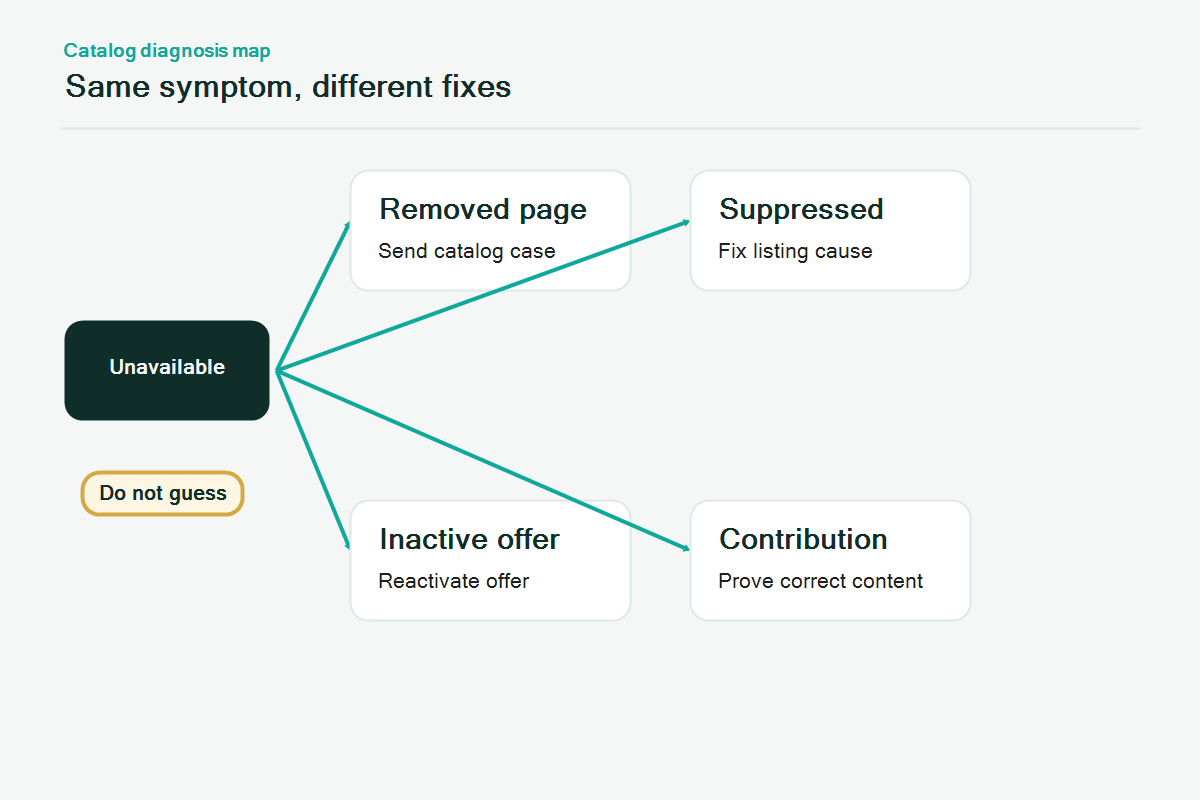
The best diagnosis starts with separating page problems from offer problems. A page problem affects the ASIN's catalog detail page. An offer problem affects whether the seller's offer can appear on that ASIN.
If the detail page is removed
Look for a policy notification, restricted product trigger, inaccurate information warning, duplicate ASIN issue, or product detail page rules violation. Do not assume the page can be restored with a normal content edit.
If the listing is search suppressed
Check missing attributes, image requirements, title problems, bullet point issues, and category-specific fields. Search suppression is often more fixable through listing content updates than a removed detail page.
If the offer is inactive
Check inventory, price, shipping template, account health, selling eligibility, and category approval. The ASIN page may be fine while the seller's offer is blocked.
If Seller Central gives no reason
Build a case packet. Include ASIN, SKU, marketplace, status screenshots, Account Health screenshot, Performance Notification screenshot, the exact error text, and the changes already attempted. Ask for the specific policy, attribute, or catalog contribution preventing the detail page from being restored.
Case Packet: What to Send Seller Support
A good Seller Central case makes the issue easy to route. The case should not say "my page is gone, please fix." It should show what the seller checked and what decision Amazon needs to make.
Include:
- ASIN and SKU
- Marketplace
- Current listing status
- Date the issue appeared
- Screenshot of Manage Inventory status
- Screenshot of Account Health or Performance Notifications
- Screenshot of listing editor error, if present
- Last flat file batch ID and processing report, if relevant
- Product title, brand, UPC/GTIN, and product type
- Compliance documents, invoices, images, or safety files if Amazon requested them
- A short request: "Please identify the specific policy, catalog attribute, or contribution conflict blocking this ASIN."
Avoid emotional language, repeated appeals, duplicate cases, and broad claims that Amazon made a mistake. Seller Support needs structured evidence, not pressure.
What Not to Do
Do not create a duplicate detail page to bypass the issue. Amazon product detail page rules generally expect one product detail page for a product already in the catalog. Duplicate ASINs can create new catalog problems and may make the original issue harder to resolve.
Do not repeatedly upload the same flat file without reading the processing report. Repeated failed uploads can create conflicting catalog contributions.
Do not change every field at once. If the root cause is unclear, make one controlled correction at a time and document the result.
Do not promise customers or internal teams that a removed page will be restored on a specific timeline. Amazon may require additional review, documents, or policy appeal steps.
Mini-Scenario
A brand owner notices that a child ASIN in a variation family shows "Detail Page Removed." The seller opens a case asking Amazon to reactivate the page, but Seller Support replies with a generic policy message. After checking the listing editor, the team finds that a restricted term in the title was triggering a product detail page rules warning. The seller removes the term, uploads corrected title and bullet content, attaches packaging photos, and opens a new case with the exact ASIN, error screenshot, and corrected attribute list. The second case is easier for Amazon to route because it asks for review of a specific corrected detail page issue.
FAQ
Is "detail page not available" the same as search suppression?
No. Search suppression usually means the listing is hidden because required content or image rules are not met. A detail page removal can involve broader catalog or policy issues.
Can I create a new ASIN if the detail page was removed?
Usually, creating a duplicate ASIN is risky. Sellers should first diagnose the original page, check Amazon's product detail page rules, and resolve the catalog or policy issue.
Why does Account Health show nothing when the page is removed?
Sometimes the listing status, Performance Notifications, and Account Health dashboard do not show the same detail at the same time. The seller should document all three areas before opening a case.
Should I use a flat file to fix a removed detail page?
Use a flat file when the issue is catalog data or variation structure. If the issue is a policy removal, Amazon may require an appeal, compliance documents, or a support review before flat file edits apply.
What should I ask Seller Support?
Ask for the specific policy, attribute, catalog contribution, or offer eligibility issue preventing the detail page from being restored. Include evidence, not a broad request to "make it active."
Need Help Diagnosing a Removed Amazon Detail Page?
Qubeq helps sellers untangle catalog, Account Health, and Seller Central case problems without creating duplicate ASINs or random listing edits. If your Amazon detail page is unavailable and support replies are going in circles, Qubeq can help build the evidence packet and correction path.