
An Amazon variation theme defines which attributes connect a parent listing to its child ASINs. Choosing the wrong variation theme is one of the most common causes of flat file errors, variation rejections, and broken parent-child structures. This guide explains what variation themes are, how to find the correct theme for your product category, common mistakes, and how to fix a wrong theme.
Key Takeaways
- A variation theme is the attribute (or combination of attributes) that differentiates child products under a parent listing: Color, Size, Flavor, Pattern, or a category-specific combination.
- Each product type (item_type_keyword) on Amazon has its own set of allowed variation themes. Using a theme that is not valid for the product type causes flat file errors or variation rejections.
- The correct variation theme is found in the flat file template's "Valid Values" tab for the product type, not by guessing or copying from another category.
- Changing a variation theme on a live listing requires careful execution, often through a flat file rebuild and Seller Central case work.
- Wrong variation themes are a frequent root cause of "Invalid variation relationship" errors in flat file processing reports.
What Is a Variation Theme?
A variation theme is the Amazon catalog attribute that defines how child ASINs differ from each other under a shared parent listing. When a customer views a product detail page with variations, the variation theme determines what selection options they see: color dropdowns, size selectors, flavor choices, or a combination.
Common variation themes include:
- Color or ColorName: children differ by color (e.g., Black, Blue, Red).
- Size or SizeName: children differ by size (e.g., Small, Medium, Large).
- SizeColor or Size-Color: children differ by both size and color (e.g., Small/Black, Medium/Blue).
- Flavor or FlavorName: children differ by flavor (e.g., Vanilla, Chocolate).
- Scent or ScentName: children differ by scent (e.g., Lavender, Eucalyptus).
- Pattern or PatternName: children differ by pattern (e.g., Striped, Solid).
- Count or ItemPackageQuantity: children differ by pack count (e.g., 1-Pack, 3-Pack).
The exact theme keyword varies by product type. "Color" and "ColorName" may look interchangeable, but Amazon treats them as different values. Using "Color" when the product type requires "ColorName" causes the flat file to fail.
How to Find the Correct Variation Theme
The correct variation theme is determined by the product type, not by the seller's preference. Here is how to find it.
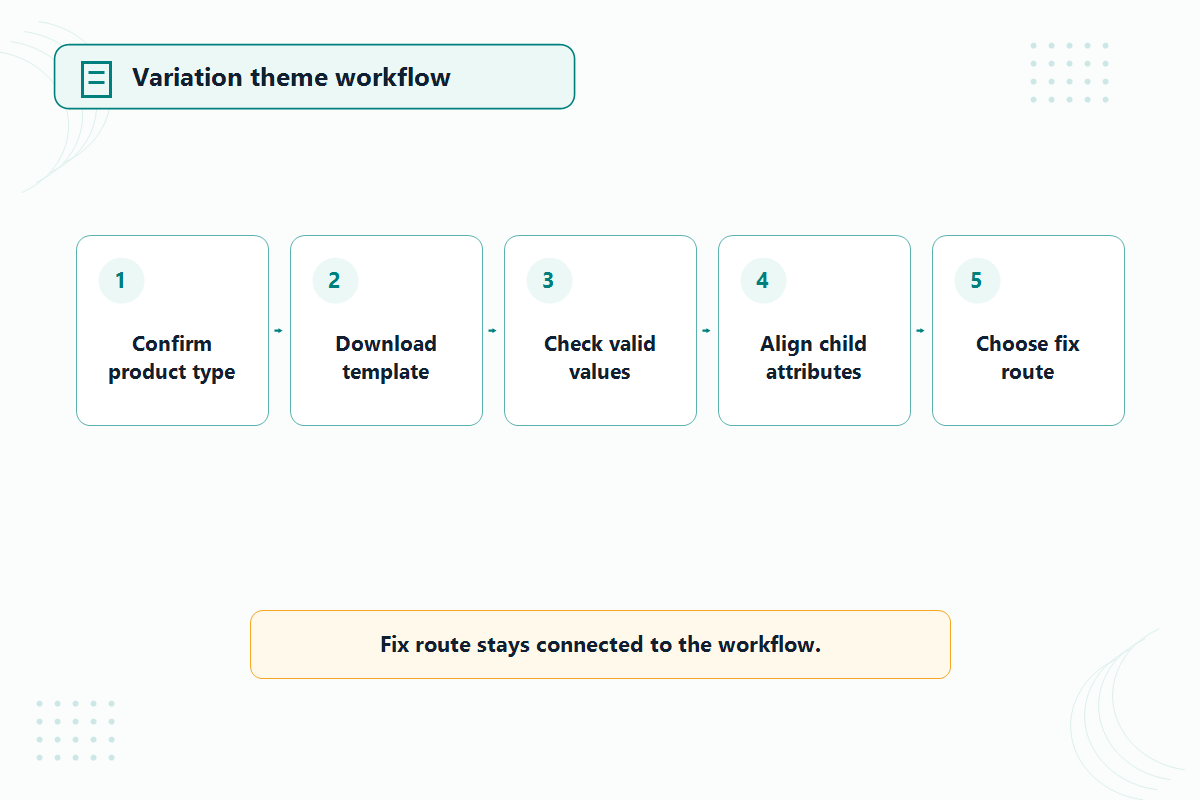
Step 1: Confirm the Product Type
Every Amazon listing is assigned a product type (item_type_keyword). The product type determines which attributes are required, which are optional, and which variation themes are allowed.
To check the product type: look at the item_type_keyword field on an existing listing in the same category, or use the Product Classifier tool in Seller Central to identify the correct product type for a new product.
Step 2: Download the Category-Specific Flat File Template
Go to Seller Central, navigate to "Add Products via Upload," and download the flat file template for the correct product type. The template is category-specific and contains the rules for that product type.
Step 3: Check the Valid Values Tab
Open the flat file template and go to the "Valid Values" or "Data Definitions" tab. Find the "variation_theme" field. The tab lists every variation theme that Amazon accepts for that product type. Use only a value from this list.
If the valid values tab shows "SizeColor" but the seller types "Size-Color" or "ColorSize," the flat file will return an error. The value must match exactly.
Step 4: Align Child Attributes to the Theme
Once the variation theme is selected, the child ASINs must include the corresponding attribute columns with valid values. If the theme is "SizeColor," every child row must have both a valid size_name value and a valid color_name value.
Common Variation Theme Mistakes
Using a Theme Not Valid for the Product Type
This is the most common mistake. A seller downloads a template for one product type, copies the variation theme from a different category, and uploads the file. The processing report returns "Invalid variation relationship" or "Variation theme not valid for this product type."
Fix: download the correct template for the product type and use only the themes listed in the valid values tab.
Confusing Similar Theme Names
"Color" and "ColorName" are different values in Amazon's system. "Size" and "SizeName" are different. "SizeColor" and "Size-Color" and "ColorSize" are different. The flat file requires the exact string from the valid values list.
Fix: copy the variation theme value directly from the template's valid values tab. Do not type it from memory or abbreviate.
Mismatched Child Attributes
If the variation theme is "SizeColor" but a child row has a size_name value and no color_name value (or vice versa), the child will fail to process. Every child must include valid values for every attribute in the theme.
Fix: ensure every child row has all required variation attributes filled with values from the valid values list.
Using Variations to Group Unrelated Products
Amazon expects variation children to be legitimate variations of the same product. Grouping unrelated products under a parent listing to share reviews or traffic violates Amazon's variation policy and can result in listing suppression, variation family dissolution, or account-level action.
Fix: only group products that differ by the variation attribute (color, size, flavor, etc.) and are otherwise the same product.
Changing the Theme Without a Full Rebuild
Changing the variation theme on a live listing is not a simple field edit. It often requires deleting the existing parent-child relationships, rebuilding the variation family with the correct theme through a flat file, and sometimes opening a Seller Central case to complete the change.
Fix: if the variation theme needs to change, plan a full variation rebuild. Test with a small upload before rebuilding the entire family.
How to Fix a Wrong Variation Theme
Fixing a wrong variation theme on a live listing requires more work than setting up a new one. The typical process:
- Document the current variation structure: parent ASIN, all child ASINs, current theme, and current attribute values.
- Prepare a flat file that deletes the existing parent-child relationships. Set the update_delete column to "Delete" for the parent-child relationship rows.
- Upload the delete file and confirm the relationships are removed.
- Download the correct flat file template for the product type.
- Prepare a new flat file with the correct variation theme, correct parent row (relationship_type = "parent"), and correct child rows (relationship_type = "child" with parent_sku and valid attribute values).
- Upload the rebuild file with a small test batch first (parent + 2 to 3 children).
- Confirm the test children process correctly and appear on the product detail page.
- Upload the remaining children.
- If any step fails, check the processing report for the specific error. Variation rebuilds may require a Seller Central case if the old structure does not fully clear.
This process can take several days, especially if Seller Central cases are involved. Timing matters: if the product is actively selling, the variation rebuild temporarily disrupts the listing's search visibility and sales velocity.
Variation Theme Reference by Common Category
The exact themes available depend on the product type. This table provides common examples, but sellers should always verify against their specific product type's flat file template.
| Category | Common Variation Themes | Notes |
| Clothing and accessories | SizeColor, Size, Color | Most apparel uses SizeColor |
| Health and beauty | Size, Flavor, Scent, Count | Supplements often use Flavor or Count |
| Electronics | Color, Size, Pattern | Size may refer to storage capacity or physical size |
| Home and kitchen | Color, Size, Pattern | Check which "Color" keyword the product type uses |
| Grocery and food | Flavor, Size, Count | Count often represents pack quantity |
| Toys and games | Color, Size | Some toy categories have limited theme options |
| Pet supplies | Flavor, Size, Color | Pet supplements often use Flavor |
| Sports and outdoors | Color, Size, SizeColor | Similar to clothing structure |
This table is directional only. Amazon adds, removes, and renames variation themes at the product-type level. The flat file template for the specific product type is always the authoritative source.
Example: Variation Theme Mismatch Causing Flat File Failure
A seller expands a supplement product from one flavor to four flavors. The seller downloads a flat file, types "Flavor" as the variation theme, and uploads the file. The processing report returns errors on all child rows: "Variation theme not valid for this product type."
The root cause: the product type uses "FlavorName" not "Flavor." The flat file template's valid values tab listed "FlavorName" but the seller typed "Flavor" from memory.
The fix: the seller checks the valid values tab, replaces "Flavor" with "FlavorName" in the variation_theme column, confirms the child rows use the correct flavor_name attribute column, and re-uploads. All children process successfully.
FAQ
How do I find which variation themes my product type supports?
Download the category-specific flat file template from Seller Central for your product type. Open the "Valid Values" tab and look for the "variation_theme" field. The tab lists every accepted value.
Can I change a variation theme on a live listing?
Yes, but it requires a flat file rebuild. You need to delete the existing parent-child relationships, then create new ones with the correct theme. This process may require a Seller Central case and can temporarily disrupt the listing.
What happens if I use the wrong variation theme?
The flat file processing report returns an error (typically "Invalid variation relationship" or "Variation theme not valid"). The child ASINs will not be added to the parent. If the wrong theme was somehow accepted, the listing may display incorrect variation options to customers.
Can I create variations without a flat file?
For simple variations, Seller Central's "Add a Product" interface allows variation setup without a flat file. However, the interface is limited and may not support all variation themes or complex structures. Flat files are more reliable for multi-child variation families and for repairing existing structures.
Why does Amazon use different theme names for similar attributes?
Amazon's catalog system is organized by product type, and each product type defines its own attribute names. "Color" and "ColorName" may represent the same concept, but they are different fields in different product types. This is a catalog architecture decision, not an error.
When Variation Structures Need Expert Attention
Building a simple two-child variation is straightforward. Rebuilding a broken variation family with 20+ children across multiple themes, or fixing a variation structure that was incorrectly set up by a previous operator, requires catalog-level understanding of product types, flat file architecture, and Seller Central case handling.
If your team manages complex variation structures and flat file uploads keep failing, Qubeq can review the catalog architecture and rebuild the variation families correctly. We have built and repaired over 10,000 variation structures for established Amazon brands. Request a free catalog review to identify the structural issues behind recurring variation problems.